
Many users want to know how to enable dark mode in Windows 11 to reduce eye strain, save laptop battery, and enjoy a cleaner interface. Dark mode changes the system appearance of Windows 11 to a dark color scheme, which is more comfortable in low-light environments. This guide will show you all the simple methods you can use.
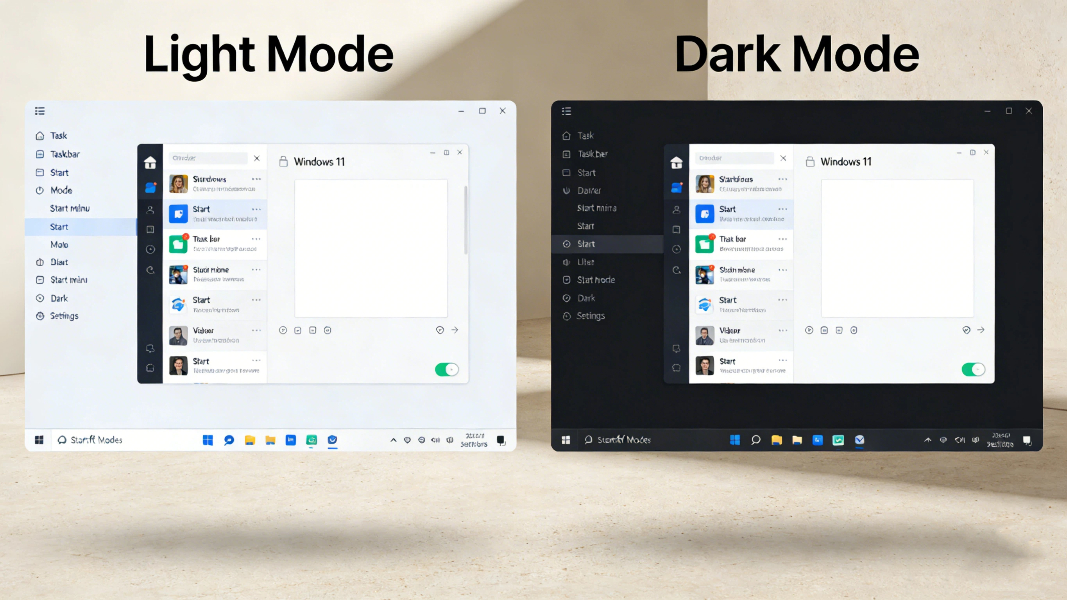
Before we start, let’s look at why you use dark mode in Windows 11:
– Reduces eye fatigue during long-time computer use
– Saves battery power on OLED and AMOLED laptop screens
– Provides a modern and minimalist appearance
– Works with system settings, File Explorer, and most built-in apps
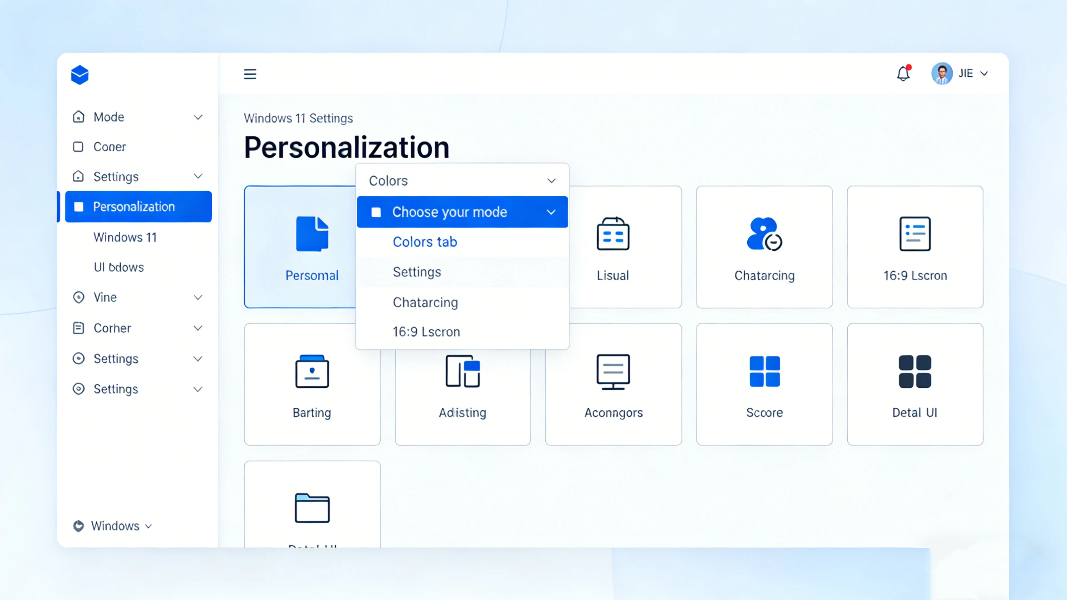
The easiest way to turn on dark mode only takes a few seconds.
1. Press Windows + I to open Settings quickly.
2. Click Personalization in the left menu.
3. Select the Colors option on the right.
4. Find the setting called Choose your mode.
5. Select Dark from the dropdown menu.
Once you complete these steps, your Windows 11 system will switch to dark mode immediately. This is the most common way people learn how to enable dark mode in Windows 11.
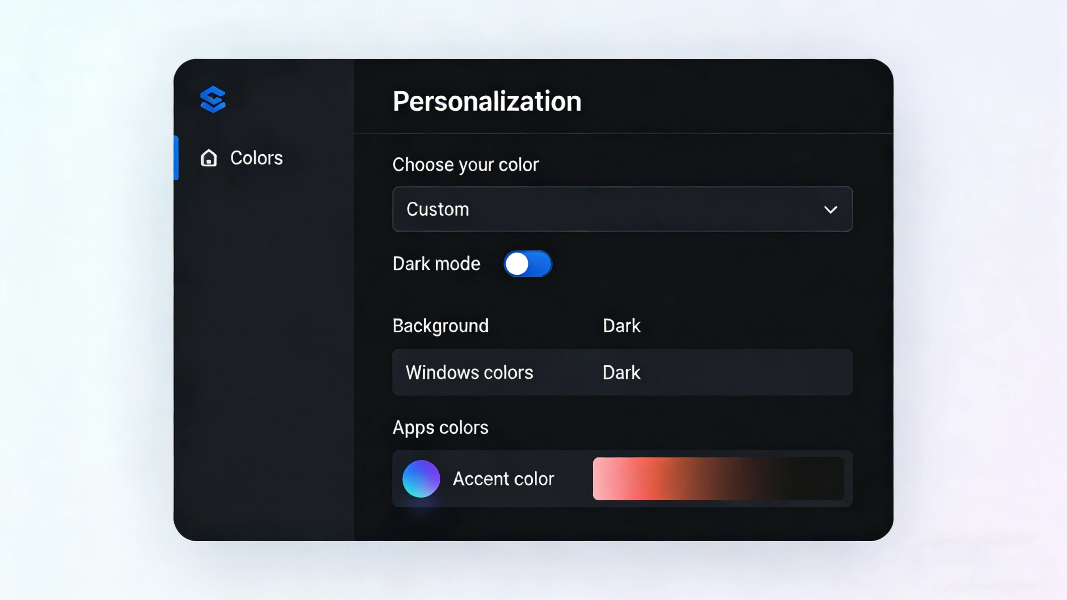
Windows 11 also supports a custom mode, so you don’t have to use full light or full dark.
1. Go to Settings > Personalization > Colors.
2. Under Choose your mode, select Custom.
3. You can set dark mode for Windows elements and light mode for apps, or the other way around.
This flexible setting makes dark mode in Windows 11 suitable for different user preferences.
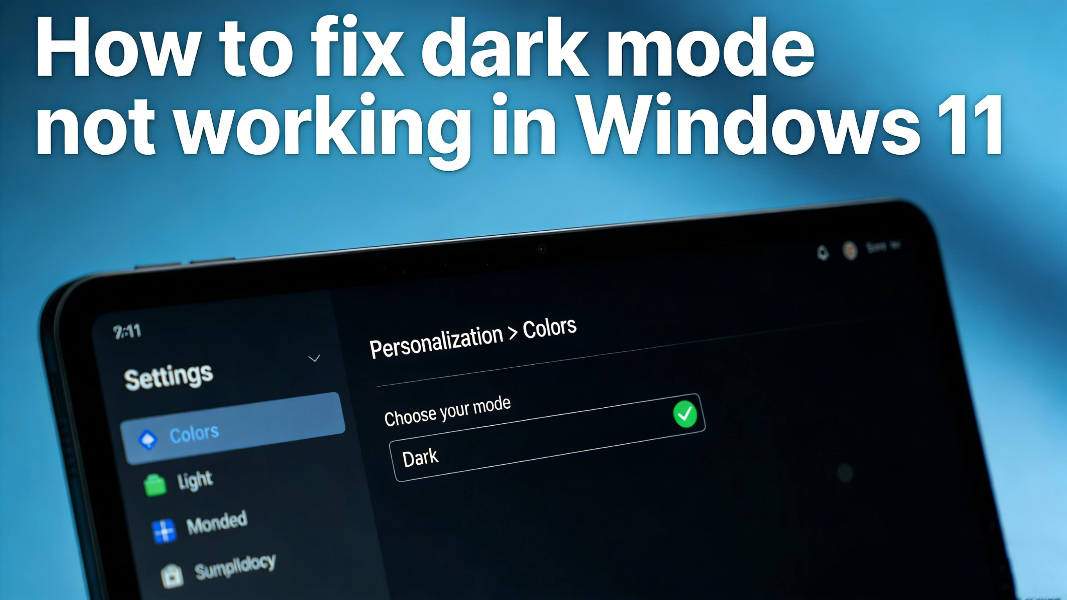
Some users find that dark mode does not apply correctly after setup. Here are simple fixes:
– Restart your computer
– Install the latest Windows 11 updates
– Update your graphics driver
– Reset color settings in Personalization
If you often have small system errors, you may benefit from reliable Windows optimization tools.
Does dark mode save battery on Windows 11?
Yes, dark mode helps save battery, especially on laptops with OLED and AMOLED screens.
Can I use dark mode only for apps?
Yes, you can use the custom mode to set dark mode only for applications without changing the Windows system interface.
Is dark mode better for eyes?
Dark mode reduces brightness contrast at night, which can make your eyes feel less tired after long hours of use.
Learning how to enable dark mode in Windows 11 is simple and can be finished in less than one minute. Whether you want better eye protection, better appearance, longer battery life, dark mode is one of the most useful features in Windows 11.
You can switch between light and dark mode anytime in Settings, or use custom mode for a more personalized experience.