
If your Windows 11 File Explorer keeps crashing or freezing every time you open it, learning how to fix Windows 11 File Explorer keeps crashing issues can restore your daily workflow and reduce frustration. Many American users experience sudden crashes, automatic restarts, or unresponsive windows when managing files, but most of these problems have easy, safe fixes that require no advanced technical knowledge.
File Explorer crashes often happen due to corrupted system files, outdated display drivers, problematic thumbnails, or conflicting shell extensions. These issues build up over time, especially on devices used for daily work, storage management, and media browsing. This guide will show you exactly how to fix Windows 11 File Explorer keeps crashing issues in just a few minutes, using only built-in Windows tools.
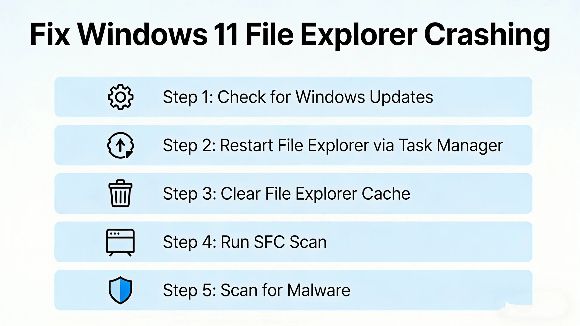
File Explorer instability in Windows 11 typically comes from a small set of common causes. Corrupted system files are one of the top reasons, as they prevent the file management system from loading properly. Outdated or incompatible graphics drivers can also cause display-related crashes when opening folders with many files or large thumbnails.
Too many cached thumbnails, conflicting third-party extensions, and unnecessary background services can also overload File Explorer and force it to close unexpectedly. Understanding how to fix Windows 11 File Explorer keeps crashing issues means targeting these causes with clear, reliable steps that work for all desktop and laptop devices.
The first and most effective step to stop File Explorer crashes is restarting the process itself. Press Ctrl + Shift + Esc to open Task Manager, find Windows Explorer in the list, right-click it, and select Restart. This often resolves temporary freezes and is a quick first move when learning how to fix Windows 11 File Explorer keeps crashing issues.
Next, clear corrupted thumbnail cache, which is a frequent cause of repeated crashes. Open Settings > System > Storage > Temporary files, then check Thumbnails and uncheck everything else. Click Remove files to clean the cache. This removes damaged preview data that forces File Explorer to crash when loading folders full of images or videos.
You can also repair corrupted system files using Command Prompt. Open it as administrator, type sfc /scannow, and press Enter. Let the scan complete to automatically fix damaged system components. If needed, follow with the DISM command to repair the Windows image. These steps resolve deep system issues and are essential to how to fix Windows 11 File Explorer keeps crashing problems.
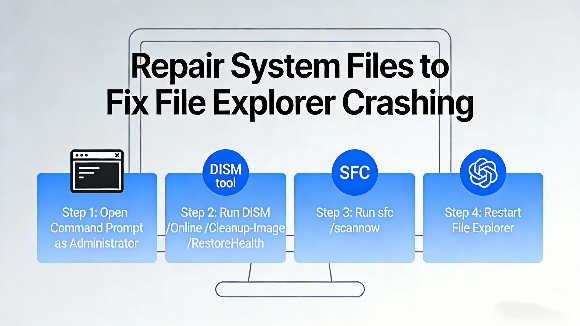
Finally, update your graphics driver and Windows system to improve stability. Outdated drivers often cause display conflicts within File Explorer, especially when scrolling through large folders. Go to Settings > Windows Update and install all available patches to ensure compatibility. These steps work together to fully stabilize File Explorer and prevent future crashes.
Once your File Explorer is working smoothly again, you can customize your desktop for a more efficient experience. You can
enable dark mode
to make file browsing easier on the eyes. You can also
change desktop wallpaper
for a cleaner look. If you can’t find your important folders, use our guide to
show desktop icons
for fast access.
File Explorer crashes are extremely common in Windows 11 and almost never mean permanent damage to your system or files. Clearing thumbnails, restarting processes, and updating drivers are completely safe and will not delete your personal files. You do not need paid software to fix these issues, as all necessary tools are already included in Windows 11.
Most users see immediate improvement after applying the first two fixes, while deeper issues require a quick system scan. Knowing how to fix Windows 11 File Explorer keeps crashing issues ensures you can manage files without interruptions.
Learning how to fix Windows 11 File Explorer keeps crashing issues gives you a stable, reliable file management system without expensive repairs or professional help. By restarting Explorer, clearing thumbnails, repairing system files, and updating drivers, you can eliminate crashes and enjoy smooth folder navigation every day.
These steps are simple, user-friendly, and designed for American Windows users with no technical background. Spending just a few minutes on these fixes will save you hours of frustration and keep your PC running efficiently. Whether you use File Explorer for work, school, or personal storage, mastering how to fix Windows 11 File Explorer keeps crashing issues is a valuable skill for any Windows 11 user.
Microsoft Support provides official help for File Explorer problems, and PCMag offers extra tips to keep your file system running smoothly, supporting what you’ve learned about how to fix Windows 11 File Explorer keeps crashing issues.
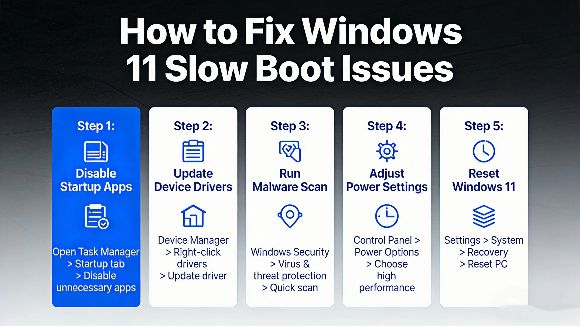
If your Windows 11 PC takes forever to start up, learning how to fix Windows 11 slow boot issues can make a huge difference in your daily experience. Many American users deal with...
2026-03-27 | 51views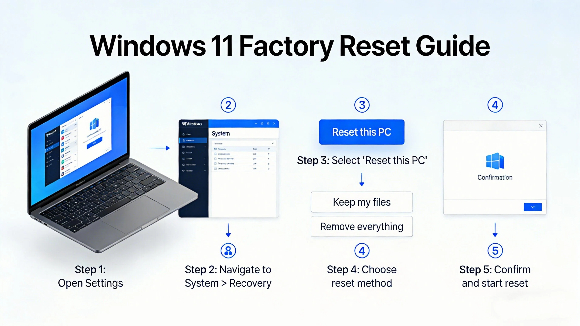
Many Windows 11 users often face system lag, glitches, and clutter, so learning how to reset Windows 11 to factory settings is the most effective way to restore your PC to full pe...
2026-03-26 | 39views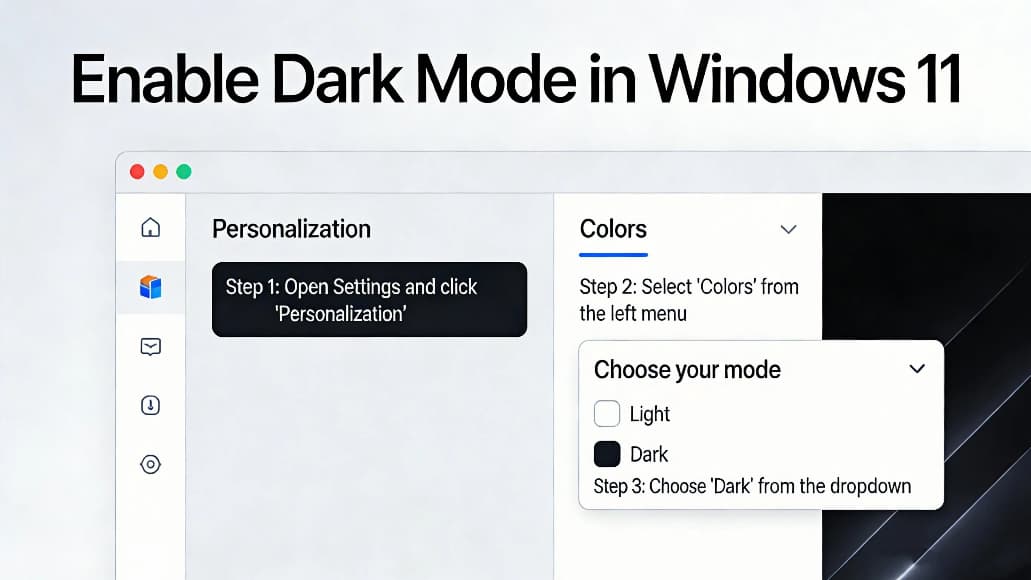
Many users want to know how to enable dark mode in windows 11 to reduce eye strain and save battery power on laptops. Dark mode changes the system interface settings apps and menu...
2026-03-25 | 48views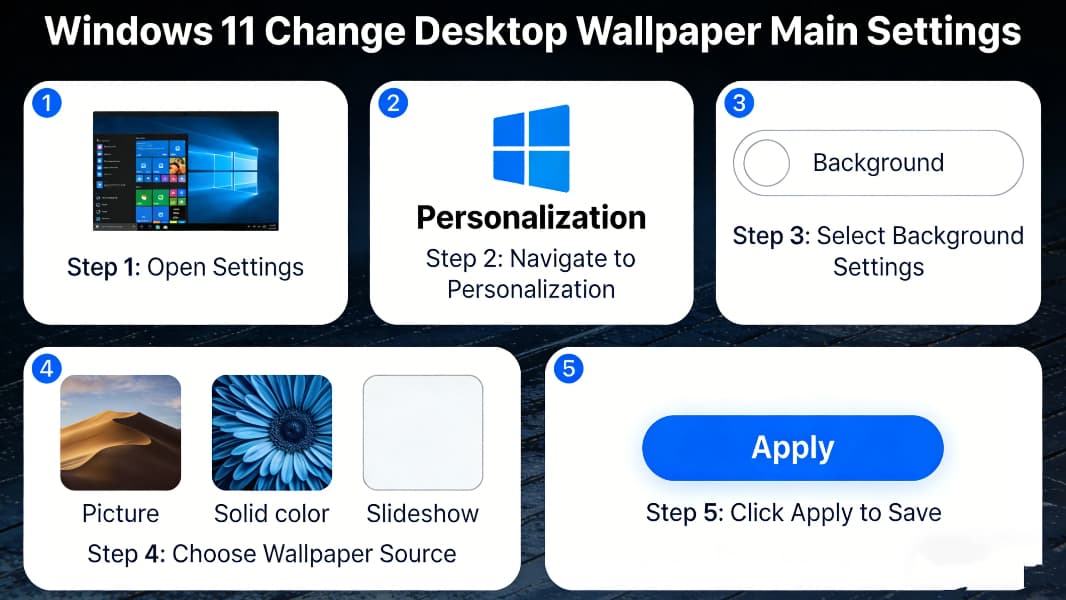
Many users want to know how to change desktop wallpaper in Windows 11 to customize their computer interface and make it more personalized. Whether you want to use Windows 11’s bui...
2026-03-24 | 51views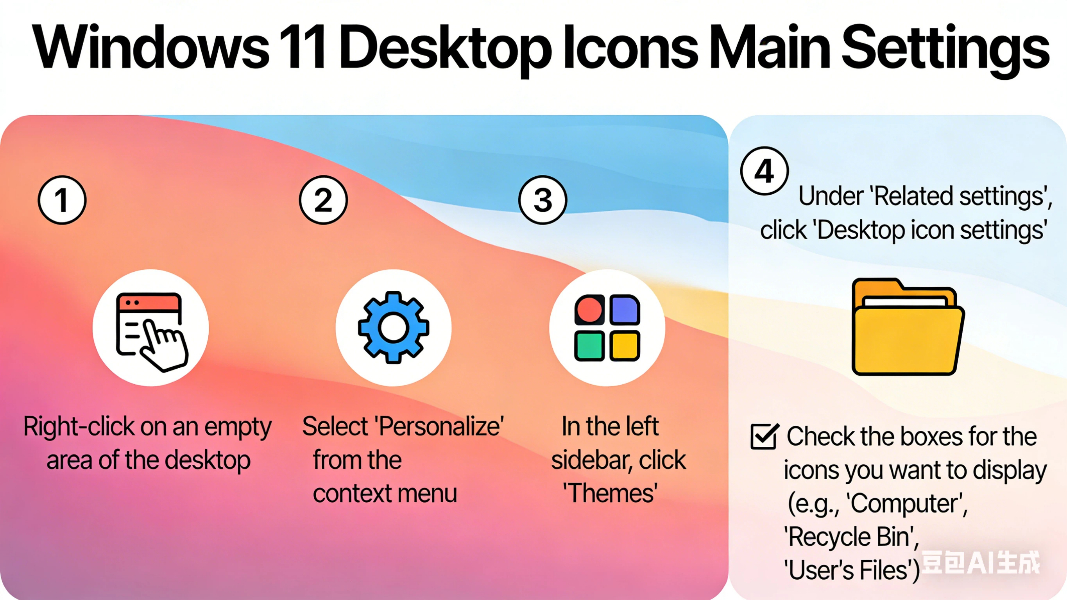
Many users want to know how to show desktop icons in Windows 11 after installing or updating the system. By default, Windows 11 may hide important desktop icons like This PC, Recy...
2026-03-23 | 85views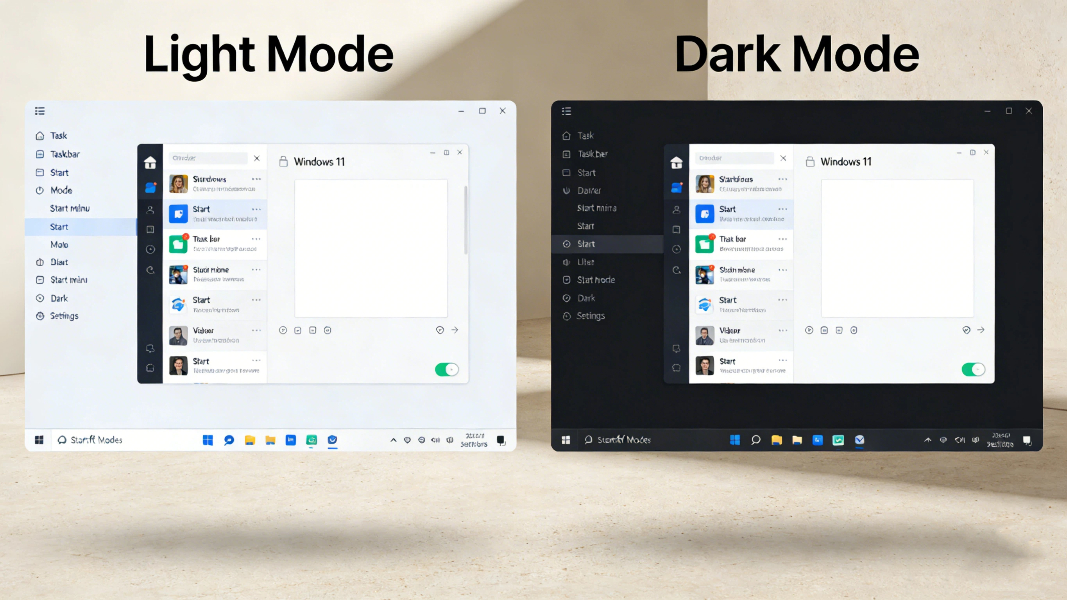
Many users want to know how to enable dark mode in Windows 11 to reduce eye strain, save laptop battery, and enjoy a cleaner interface. Dark mode changes the system appearance of ...
2026-03-22 | 69views