
Many Windows 11 users often face system lag, glitches, and clutter, so learning how to reset Windows 11 to factory settings is the most effective way to restore your PC to full performance.
Resetting your Windows 11 device to factory settings is a reliable solution that clears out corrupted files, removes unwanted apps, and restores your PC to its original, smooth-running state—something every American PC user should know how to do.
This is especially true after customizing settings like dark mode or desktop layouts that may cause minor system conflicts over time. Whether you’re preparing to sell your computer, fix persistent errors, or just want a fresh start to reconfigure personalizations like custom desktop wallpapers, mastering how to reset Windows 11 to factory settings is an essential skill that saves you time and frustration.
For most American PC users, a slow, glitchy computer can be incredibly frustrating—apps crash, pages load slowly, and simple tasks take forever to complete. When basic troubleshooting (like updating drivers or running antivirus scans) doesn’t work, learning how to reset Windows 11 to factory settings becomes a game-changer.
This process wipes out all custom settings, unwanted apps, and corrupted data, giving you a clean slate to work with. You can start fresh with default system settings or re-add personal touches like custom desktop icons later. It’s also critical if you’re selling, donating, or recycling your PC, as it ensures all your personal data—photos, documents, bank information, and social media accounts—is completely erased, keeping your privacy protected.
Unlike other fixes that only band-aid the problem, knowing how to reset Windows 11 to factory settings addresses the root cause of many system issues. It’s a go-to solution for any Windows 11 user who wants a fully functional device without costly repairs.
The easiest way to reset Windows 11 to factory settings is through the built-in Settings app—a method that’s intuitive even for users who aren’t tech-savvy. It’s the same app you use for all your Windows 11 personalizations, making it a familiar process for most users.
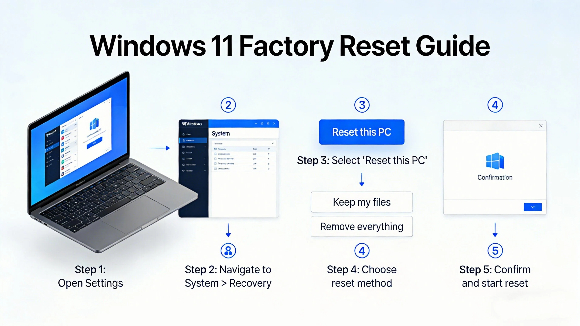
Here’s a simple, step-by-step breakdown that’s easy to follow for every level of user: First, press the Windows key + I on your keyboard to open the Settings app. This is a universal shortcut all Windows users learn for quick access to system controls. From the left sidebar, click on “System,” then scroll down to the bottom of the page and select “Recovery.” Next, look for the “Reset PC” button and click it—this will bring up two core options: “Keep my files” and “Remove everything,” each designed for different user needs.
If you want to keep your personal photos, documents, and videos, choose “Keep my files.” This will only remove third-party apps and custom system settings, not your personal data, which is perfect if you’re just fixing performance issues and want to keep your saved files. If you’re selling or donating your PC, select “Remove everything” to erase all data completely, leaving the device in its original factory state for the new owner.
After choosing your preferred option, you’ll be asked whether to reinstall Windows from the cloud or from local files. Cloud reinstall downloads the latest, most up-to-date version of Windows 11. Local reinstall is a faster option if your current system files are stable and uncorrupted. Follow the on-screen prompts carefully, and Windows will begin the reset process.
This usually takes 30 to 60 minutes, depending on your PC’s hardware. SSDs are far faster than traditional HDDs, a key detail most American PC users look for in device performance. During this time, do not turn off your computer or disconnect it from power, as this can cause permanent system corruption that’s hard to fix.
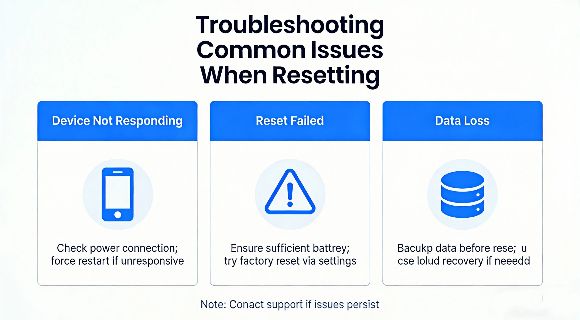
Even with a straightforward process, some users might run into small hiccups when trying to reset Windows 11 to factory settings. This is especially true if their PC is already experiencing boot issues or system glitches.
For example, if your PC won’t boot into Windows to access the Settings app at all, you can use the Advanced Startup method—a fail-safe trick for unbootable devices. Restart your computer and hold the power button mid-boot three times in a row. This will automatically trigger the Windows Recovery Environment (WinRE), a dedicated troubleshooting menu for serious system issues. From there, select “Troubleshoot,” then “Reset this PC,” and follow the same “Keep my files” or “Remove everything” steps as before.
If you’re still having trouble with the reset process or other Windows 11 customization issues, check out PCMag for expert tips tailored to American Windows 11 users. This trusted tech resource offers step-by-step solutions for all common PC problems.
Another common issue users face is accidentally deleting personal files before a reset, which is why backing up data is non-negotiable. Always save important files to an external hard drive, USB stick, or cloud storage (like OneDrive or Google Drive) before starting the reset. This simple step prevents permanent data loss and ensures you don’t lose precious photos, work documents, or downloaded media.
Remember, resetting Windows 11 to factory settings is a permanent change for your system’s software. Taking just 5 minutes to back up data is always worth the effort for peace of mind.
Q: Will resetting Windows 11 to factory settings delete my personal files?
A: Only if you select the “Remove everything” option—the “Keep my files” setting preserves all your photos, documents, videos, and music while removing apps and custom settings, ideal for quick performance fixes.
Q: How long does it take to reset Windows 11 to factory settings?
A: Typically 30–60 minutes, depending on your PC’s hardware—laptops and desktops with SSD storage reset in as little as 30 minutes, while HDD devices take closer to an hour.
Q: Do I need an internet connection to reset Windows 11 to factory settings?
A: No—you can use the local reinstall option with no internet, but the cloud reinstall requires a stable connection to download the latest Windows 11 version.
Q: Will I lose my Windows 11 license after a factory reset?
A: No, your Windows 11 license is tied to your device’s hardware, so it will reactivate automatically after the reset is complete.
To ensure your reset goes as smoothly as possible, make sure your PC is plugged into a power source the entire time. This avoids power loss mid-process, which is the top cause of reset failures. After the reset is complete, you’ll need to reinstall your favorite third-party apps (like Google Chrome, Microsoft Office, or antivirus software) and update your device drivers to get everything back to normal performance.
You’ll also be able to reconfigure all your favorite Windows 11 personalizations from scratch, from dark mode and desktop wallpapers to icon layouts and accent colors. If you need more detailed, official guidance on the reset process or other Windows 11 system tasks, the official Microsoft Support page has step-by-step videos and additional troubleshooting tips tailored specifically to Windows 11 users across the US.
Learning how to reset Windows 11 to factory settings doesn’t have to be complicated. With this guide, you can fix system lag and errors, protect your privacy when selling your device, and restore your PC to its like-new state in just an hour or less. Whether you’re a tech beginner who’s new to Windows 11 or a more experienced user who works with their PC daily, this process is straightforward, effective, and a must-have skill for anyone who owns a Windows 11 device.
Once the reset is done, you’ll have a clean, fast system ready to customize with all your favorite settings and personal touches, making your PC feel brand new again.
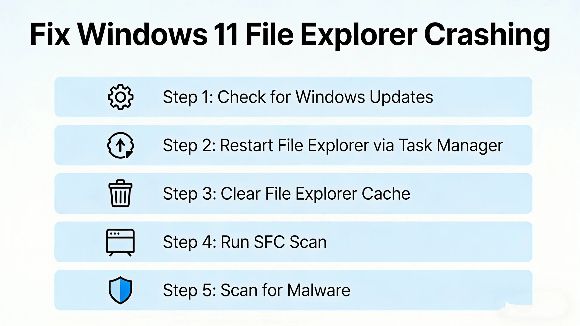
If your Windows 11 File Explorer keeps crashing or freezing every time you open it, learning how to fix Windows 11 File Explorer keeps crashing issues can restore your daily workf...
2026-03-29 | 36views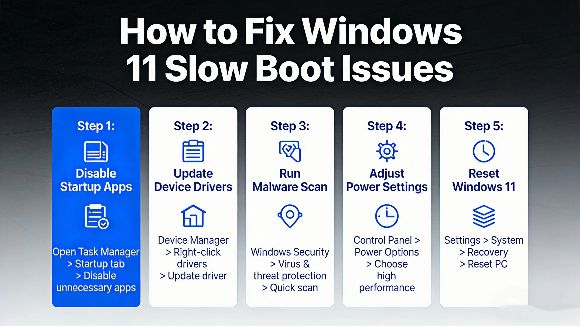
If your Windows 11 PC takes forever to start up, learning how to fix Windows 11 slow boot issues can make a huge difference in your daily experience. Many American users deal with...
2026-03-27 | 51views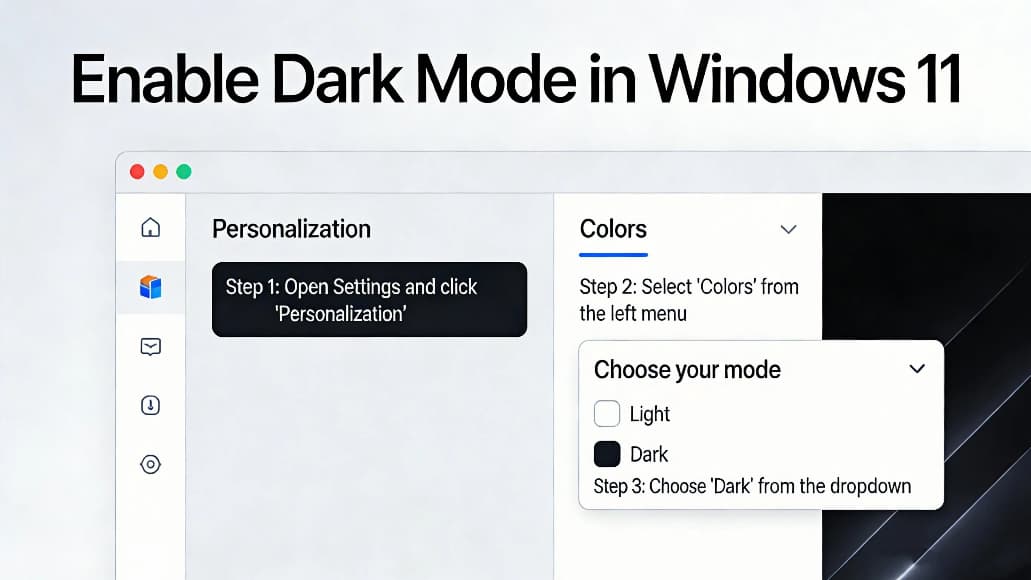
Many users want to know how to enable dark mode in windows 11 to reduce eye strain and save battery power on laptops. Dark mode changes the system interface settings apps and menu...
2026-03-25 | 48views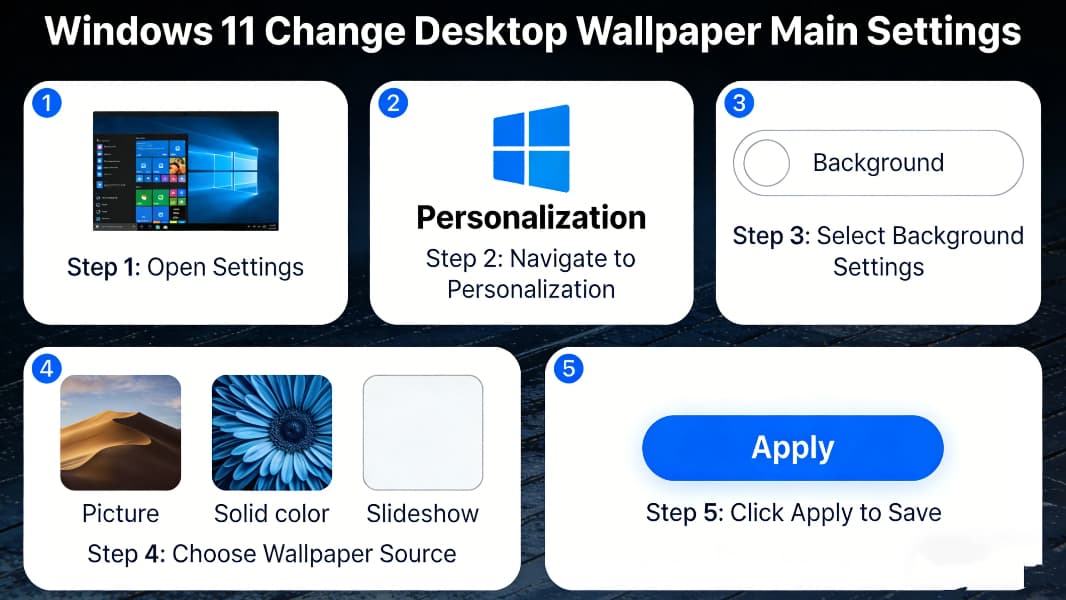
Many users want to know how to change desktop wallpaper in Windows 11 to customize their computer interface and make it more personalized. Whether you want to use Windows 11’s bui...
2026-03-24 | 51views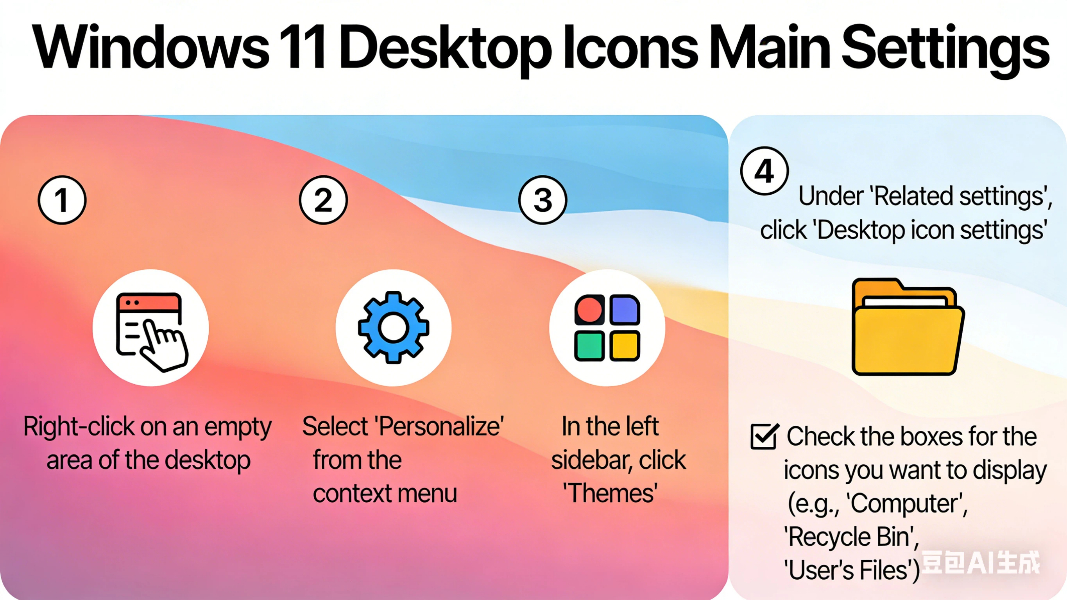
Many users want to know how to show desktop icons in Windows 11 after installing or updating the system. By default, Windows 11 may hide important desktop icons like This PC, Recy...
2026-03-23 | 85views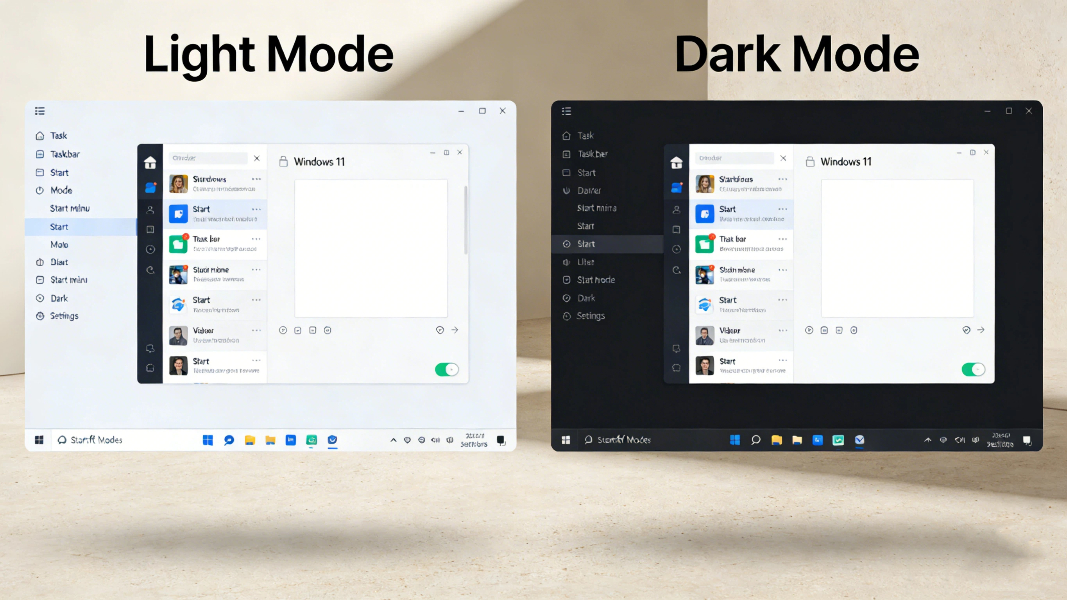
Many users want to know how to enable dark mode in Windows 11 to reduce eye strain, save laptop battery, and enjoy a cleaner interface. Dark mode changes the system appearance of ...
2026-03-22 | 69views