
If your Windows 11 PC takes forever to start up, learning how to fix Windows 11 slow boot issues can make a huge difference in your daily experience. Many American users deal with long boot times, frozen screens, and delayed desktop loads, but most of these problems have easy fixes that do not require technical skills or expensive software. Whether you’re using a laptop, desktop, or all-in-one PC, slow boot can be frustrating, especially when you’re in a hurry to get work done or start streaming your favorite shows.
Slow startup usually comes from too many apps launching at boot, corrupted system files, full storage, or outdated drivers. These small issues add up over time, but this guide will walk you through everything you need to speed up your PC in just a few minutes. Understanding how to fix Windows 11 slow boot issues is a simple skill that every Windows user should have, as it can save you time and prevent the need for costly repairs or upgrades.
Slow boot in Windows 11 is almost always caused by a few common issues, and identifying them is the first step to finding a solution. Too many startup programs are the number one culprit—every app set to open when your PC turns on uses valuable memory and processing power, forcing your system to work harder and take longer to load.
Corrupted system files are another major cause; these files are essential for Windows to run smoothly, and when they’re damaged, your PC can struggle to boot up quickly. Full hard drives or SSDs also slow down startup, as Windows needs space to load system files and run background processes. Finally, outdated Windows updates and device drivers can create compatibility issues that lead to slow boot times. Knowing how to fix Windows 11 slow boot issues means addressing these common problems with simple, straightforward steps that anyone can follow.
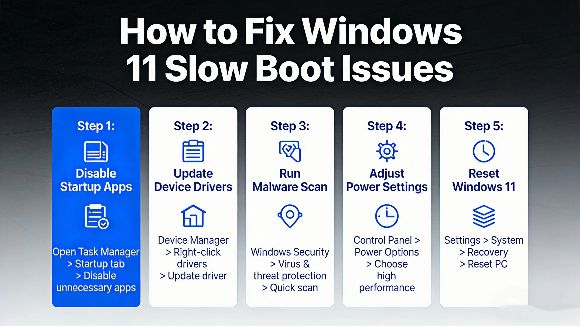
The first and easiest step to fix slow boot is to disable unnecessary startup apps. Most American users don’t realize how many programs are set to launch automatically when their PC turns on—apps like social media clients, game launchers, and photo editing software often run in the background, even if you don’t use them right away.
To fix this, press Ctrl + Shift + Esc to open Task Manager, then click on the Startup apps tab. Here, you’ll see a list of all apps that launch at boot, along with a “Startup impact” rating. Disable any app with a High or Medium impact that you don’t need immediately; this simple change can cut your boot time in half and is a key part of how to fix Windows 11 slow boot issues.
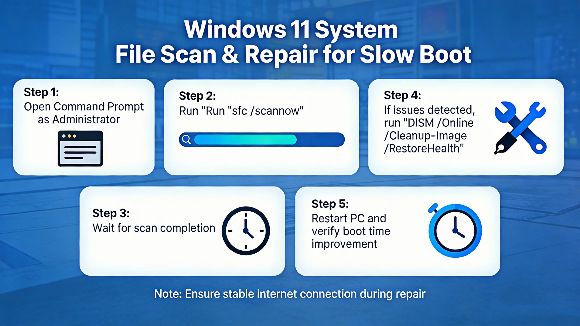
Next, repair corrupted system files, which often cause hidden slowdowns and boot delays. Windows 11 has built-in tools to fix these files without any third-party software. Open Command Prompt as an administrator by searching for “Command Prompt” in the Start menu, right-clicking it, and selecting “Run as administrator.” Type the command sfc /scannow and press Enter—this tool will scan your entire system for corrupted files and repair them automatically.
The scan may take 10 to 15 minutes, so be patient and don’t close the window. If the SFC scan doesn’t fix the issue, follow up with the DISM tool by typing DISM /Online /Cleanup-Image /RestoreHealth and pressing Enter. This tool repairs the Windows system image and fixes deeper issues that can cause slow boot, ensuring you’re on track to how to fix Windows 11 slow boot issues.
After repairing system files, optimize your storage to ensure your PC has enough space to boot quickly. A full drive—whether it’s an HDD or SSD—will slow down every part of your system, including startup. Open Settings > System > Storage to see how much space is used on your system drive.
Delete unused files, old downloads, and large programs you no longer need; aim to keep at least 20% of your drive free to ensure smooth performance. Additionally, install the latest Windows updates, as they often include performance patches and driver updates that fix slow boot and other stability issues. To check for updates, go to Settings > Windows Update and click “Check for updates”—install all available updates and restart your PC to apply the changes. These steps work together to fix slow boot and keep your Windows 11 PC running smoothly.
Once your PC boots quickly again, you can fully customize your desktop for a better experience. You can enable dark mode to reduce eye strain during long work sessions. You can also change desktop wallpaper to give your screen a fresh new look. If you notice important shortcuts are missing, you can use our guide to show desktop icons in just a few simple steps.
Most healthy Windows 11 PCs with an SSD boot in 10 to 30 seconds, while HDD devices may take one to two minutes. If your PC takes longer than that, using the steps above to fix slow boot will help a great deal. Many American users worry that disabling startup apps will harm their computer, but this is completely safe—disabling an app only stops it from launching automatically, and you can still open it manually whenever you need it. You don’t need paid software to fix slow boot, either; all the tools you need are built into Windows 11, making how to fix Windows 11 slow boot issues accessible to everyone, regardless of technical experience.
Learning how to fix Windows 11 slow boot issues lets you enjoy a faster, more responsive PC without costly upgrades or professional help. By managing startup apps, repairing system files, freeing up storage, and keeping Windows updated, you can maintain quick and consistent startup times for years. These methods are simple, safe, and designed for everyday American users, with no complicated technical steps or jargon.
Spending just a few minutes on these fixes will save you countless hours of waiting and help your Windows 11 device run like new. Whether you’re dealing with a slow laptop for work or a desktop that takes forever to load, mastering how to fix Windows 11 slow boot issues is a valuable skill that will improve your overall PC experience.
Microsoft Support offers official resources for Windows performance, and PCMag provides trusted tips to keep your PC running smoothly, complementing what you’ve learned about how to fix Windows 11 slow boot issues.
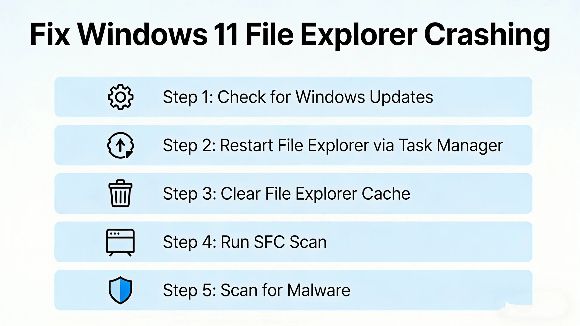
If your Windows 11 File Explorer keeps crashing or freezing every time you open it, learning how to fix Windows 11 File Explorer keeps crashing issues can restore your daily workf...
2026-03-29 | 36views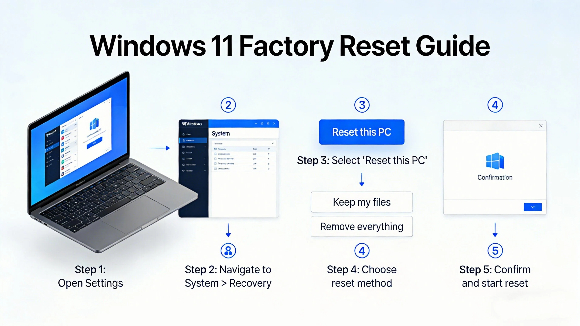
Many Windows 11 users often face system lag, glitches, and clutter, so learning how to reset Windows 11 to factory settings is the most effective way to restore your PC to full pe...
2026-03-26 | 39views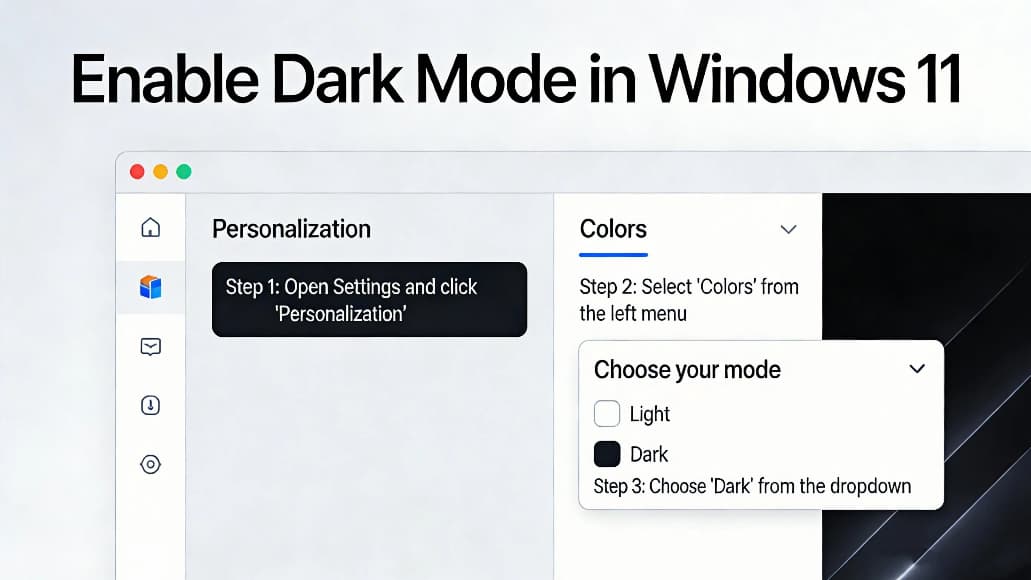
Many users want to know how to enable dark mode in windows 11 to reduce eye strain and save battery power on laptops. Dark mode changes the system interface settings apps and menu...
2026-03-25 | 48views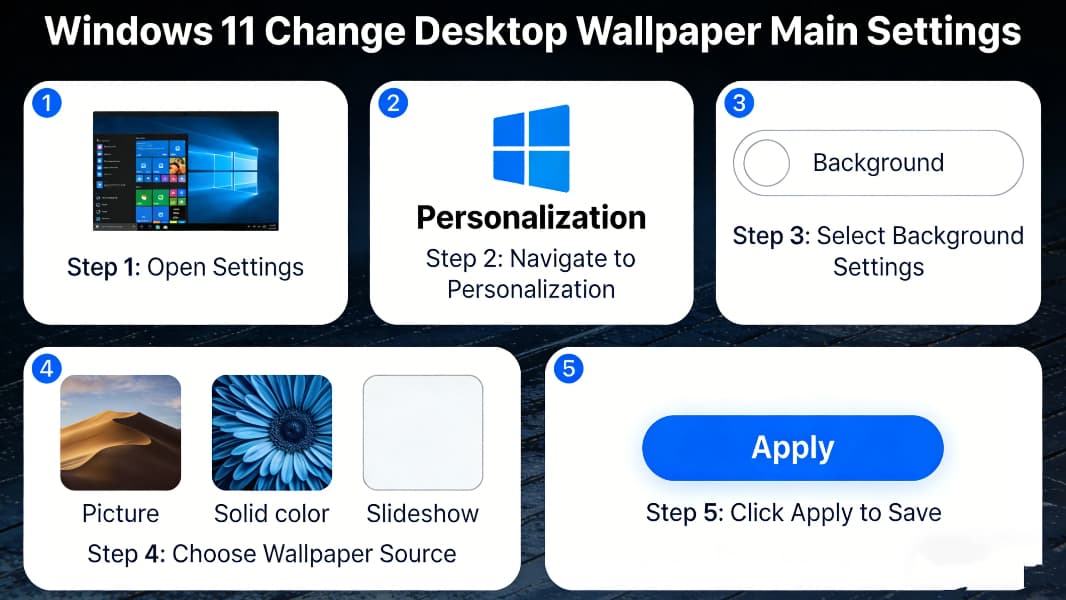
Many users want to know how to change desktop wallpaper in Windows 11 to customize their computer interface and make it more personalized. Whether you want to use Windows 11’s bui...
2026-03-24 | 51views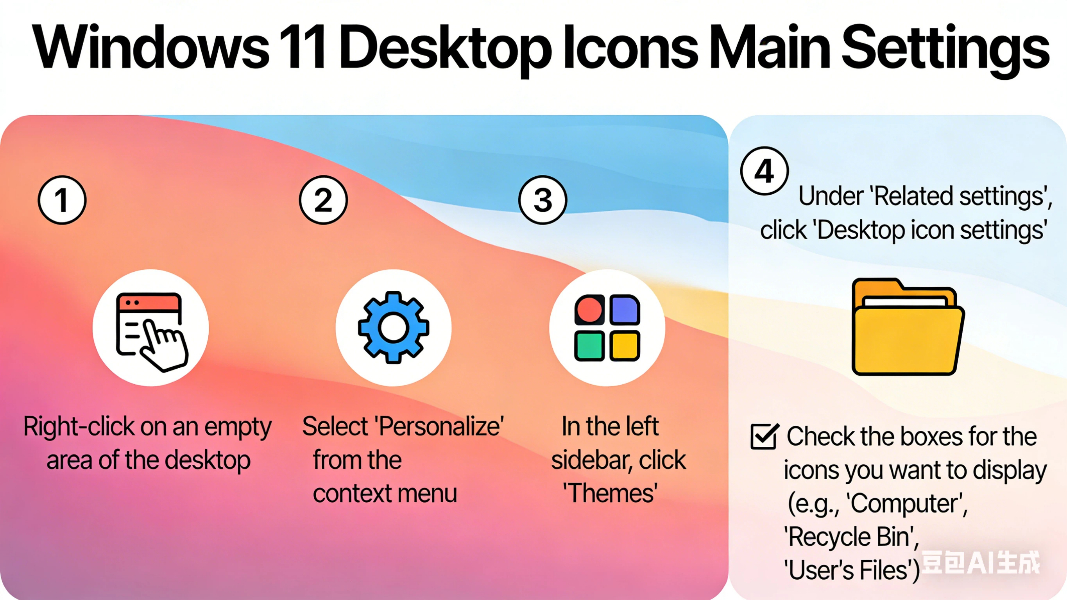
Many users want to know how to show desktop icons in Windows 11 after installing or updating the system. By default, Windows 11 may hide important desktop icons like This PC, Recy...
2026-03-23 | 85views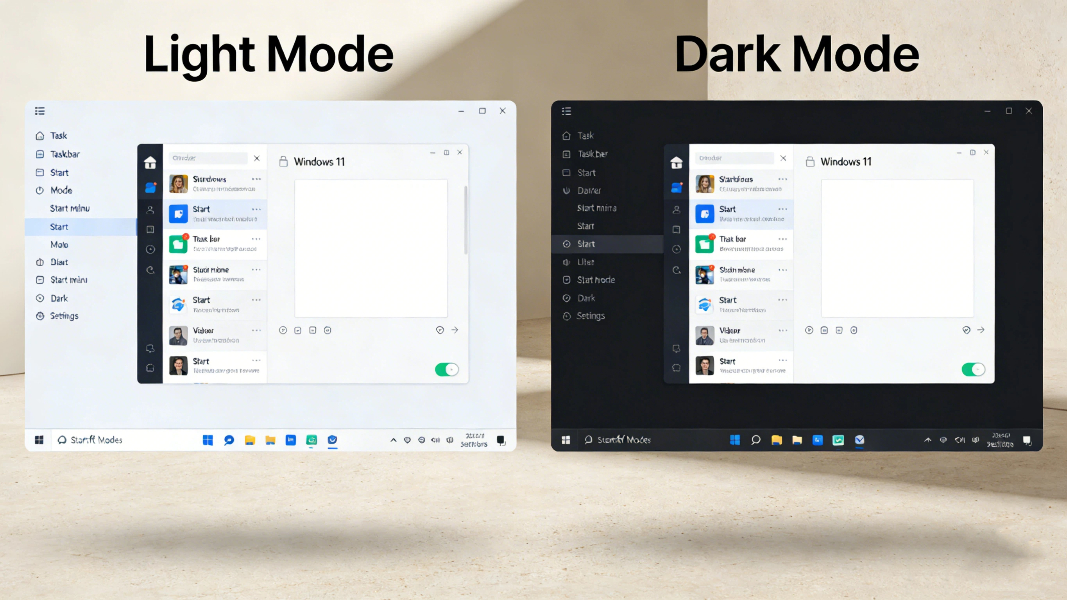
Many users want to know how to enable dark mode in Windows 11 to reduce eye strain, save laptop battery, and enjoy a cleaner interface. Dark mode changes the system appearance of ...
2026-03-22 | 69views