
Many users want to know how to show desktop icons in Windows 11 after installing or updating the system. By default, Windows 11 may hide important desktop icons like This PC, Recycle Bin, User Folder, Network, and Control Panel. This guide will help you show all desktop icons easily.
Desktop icons may be hidden in Windows 11 for these common reasons:
– Default settings hide desktop icons after a fresh install
– Accidentally changed personalization settings
– System updates reset icon visibility
– Third-party tools modified desktop settings
Most of the time, you can restore desktop icons with simple built-in settings.
Follow these steps to show desktop icons quickly:
1. Right-click on any empty area of your desktop.
2. Hover over the View option in the menu.
3. Make sure Show desktop icons is checked.
4. If it is not checked, click it to enable the option.
After this, basic desktop icons will appear. If you still cannot see This PC, Recycle Bin, or Network, continue to the next method.
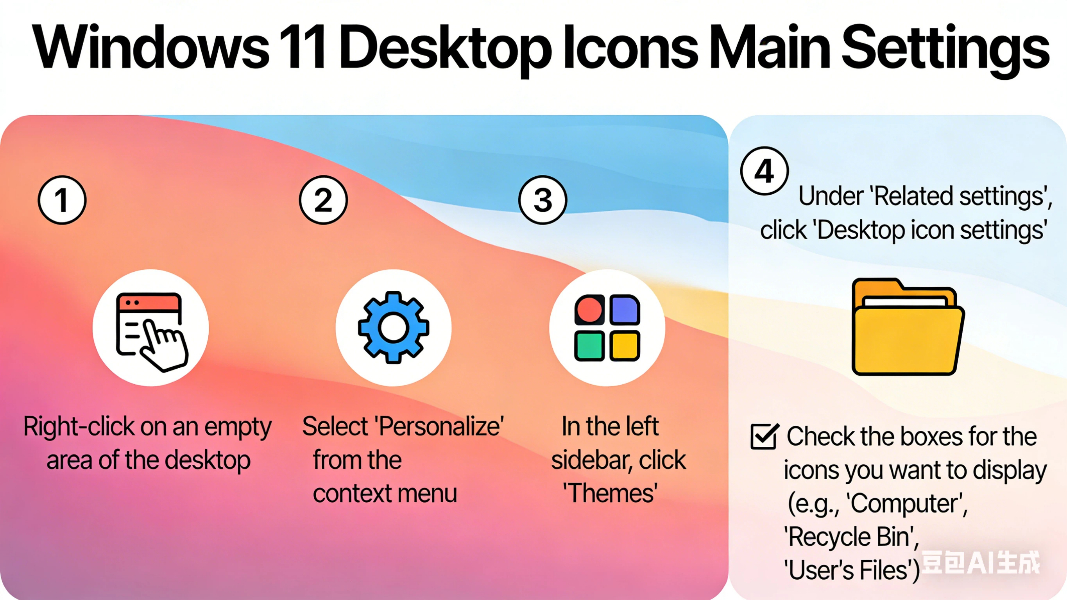
1. Press Windows + I to open Settings.
2. Go to Personalization > Themes.
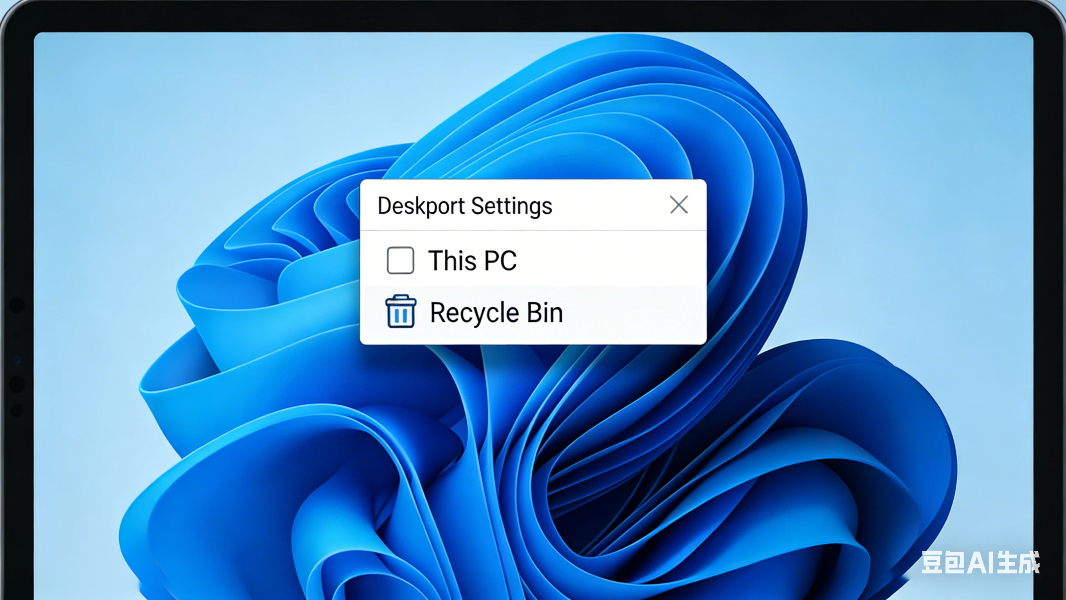
3. Click Desktop icon settings.
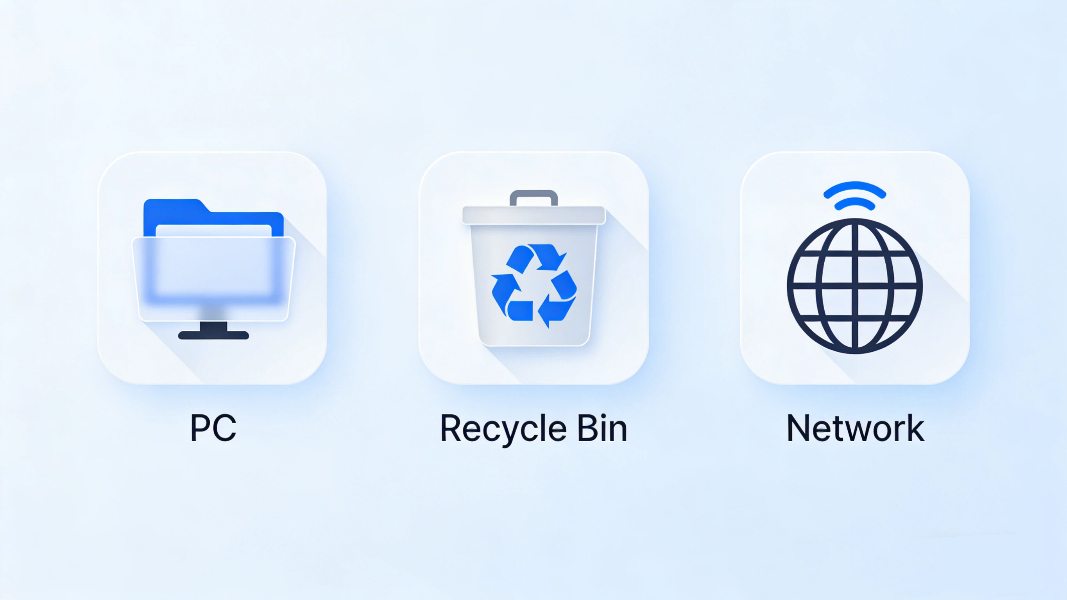
4. Check the icons you want to show: This PC, User Files, Network, Recycle Bin, Control Panel.
5. Click Apply and then OK.
All your selected icons will appear on the desktop immediately. This is the most popular way to learn how to show desktop icons in Windows 11.
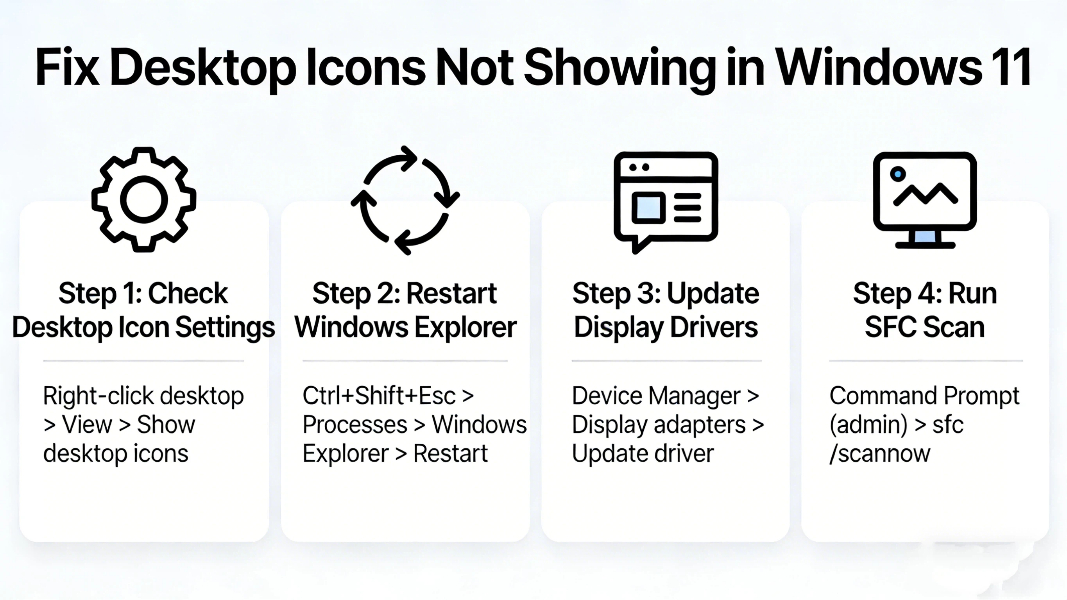
If desktop icons still do not show up, try these solutions:
– Restart your computer
– Update Windows 11 to the latest version
– Restart Windows Explorer in Task Manager
– Scan and repair system files
These steps can fix most icon display problems on Windows 11.
Can I show only This PC icon on Windows 11?
Yes, you can select which icons to show in Desktop icon settings.
Do desktop icons affect computer performance?
No, desktop icons do not slow down your computer performance.
Can I hide desktop icons again later?
Yes, you can use the same View menu to hide icons at any time.
Learning how to show desktop icons in Windows 11 is very simple and only takes a few steps. You can use the quick view menu or desktop icon settings to display This PC, Recycle Bin, Network, and other important icons.
If you follow this guide, you can easily customize your desktop in Windows 11.
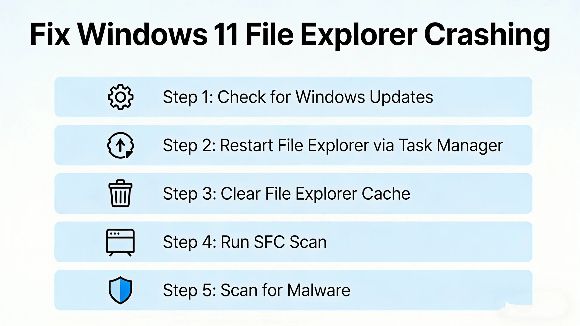
If your Windows 11 File Explorer keeps crashing or freezing every time you open it, learning how to fix Windows 11 File Explorer keeps crashing issues can restore your daily workf...
2026-03-29 | 36views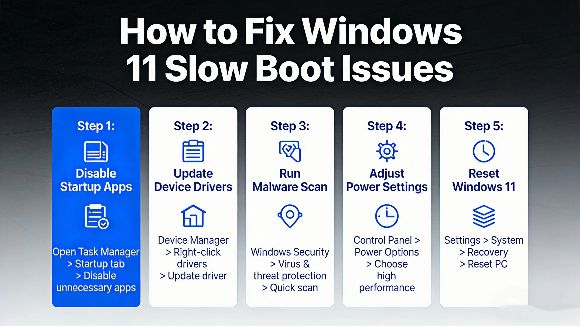
If your Windows 11 PC takes forever to start up, learning how to fix Windows 11 slow boot issues can make a huge difference in your daily experience. Many American users deal with...
2026-03-27 | 51views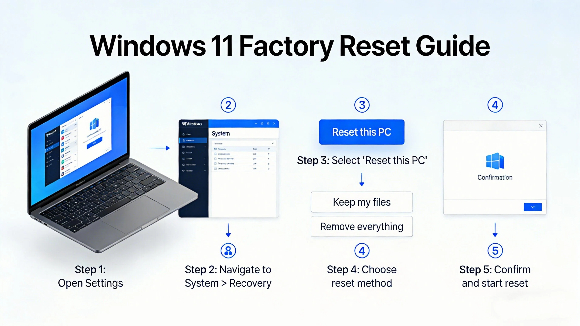
Many Windows 11 users often face system lag, glitches, and clutter, so learning how to reset Windows 11 to factory settings is the most effective way to restore your PC to full pe...
2026-03-26 | 39views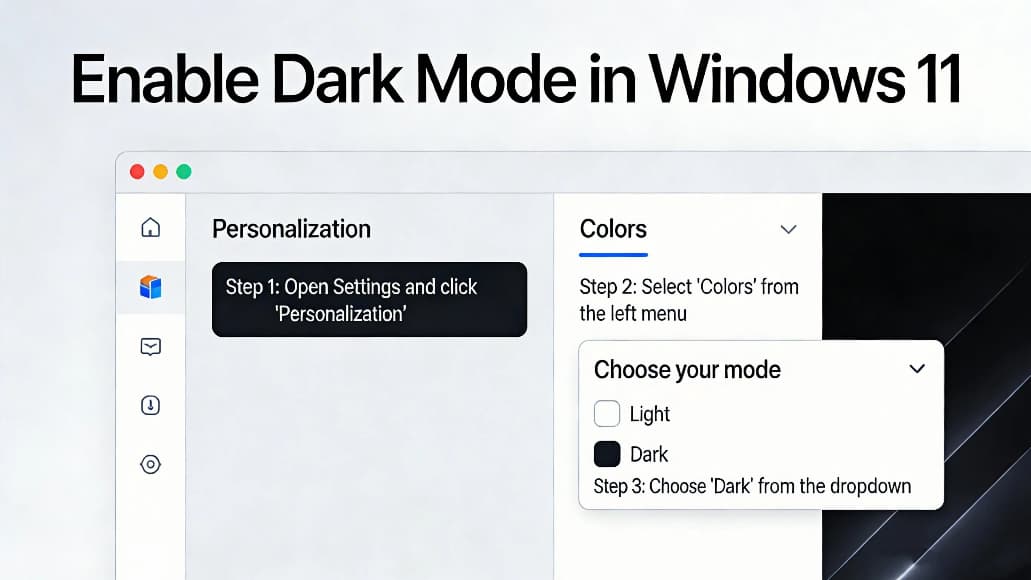
Many users want to know how to enable dark mode in windows 11 to reduce eye strain and save battery power on laptops. Dark mode changes the system interface settings apps and menu...
2026-03-25 | 48views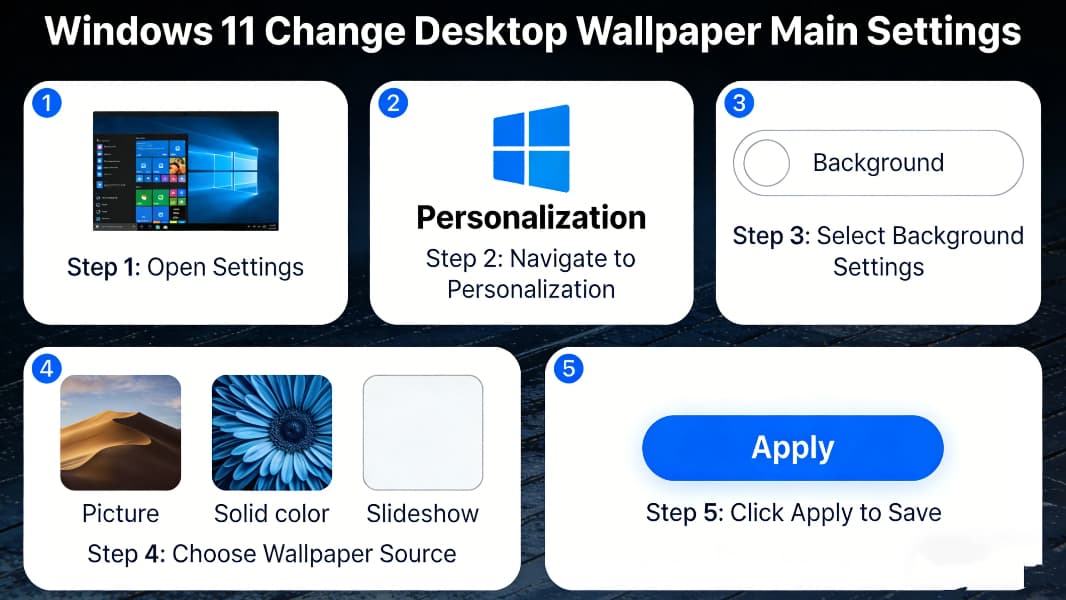
Many users want to know how to change desktop wallpaper in Windows 11 to customize their computer interface and make it more personalized. Whether you want to use Windows 11’s bui...
2026-03-24 | 51views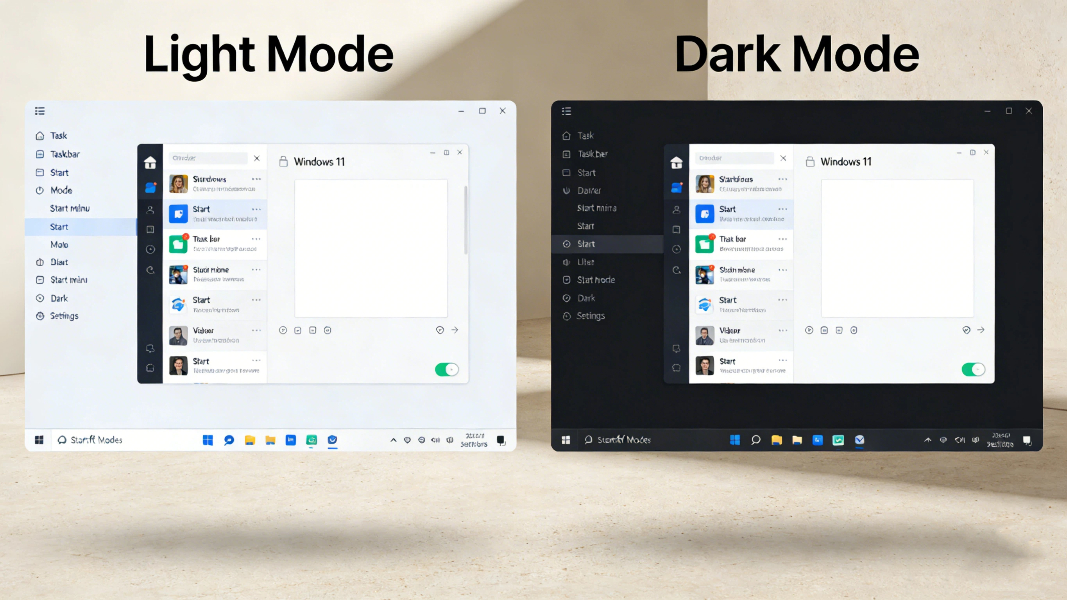
Many users want to know how to enable dark mode in Windows 11 to reduce eye strain, save laptop battery, and enjoy a cleaner interface. Dark mode changes the system appearance of ...
2026-03-22 | 69views