
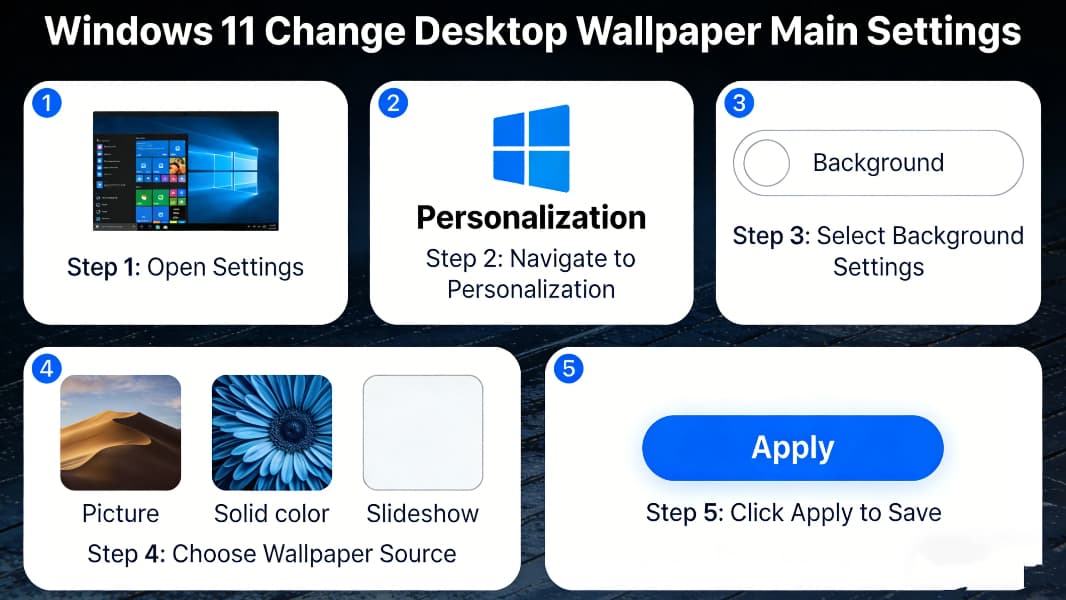
Many users want to know how to change desktop wallpaper in Windows 11 to customize their computer interface and make it more personalized. Whether you want to use Windows 11’s built-in wallpapers, your own photos, or set a wallpaper slideshow, this step-by-step guide will walk you through all the simple methods to change desktop wallpaper in Windows 11 easily.
Windows 11 supports most common image formats for desktop wallpaper, making it easy to choose your favorite picture. The compatible formats include:
JPG/JPEG (the most common and widely used format)
PNG (great for wallpapers with transparent backgrounds)
BMP (Windows native image format with high quality)
HEIC (supports high-resolution photos from mobile devices)
For the best display effect, use images with a resolution matching your screen (e.g., 1920×1080 for 1080p, 2560×1440 for 2K).
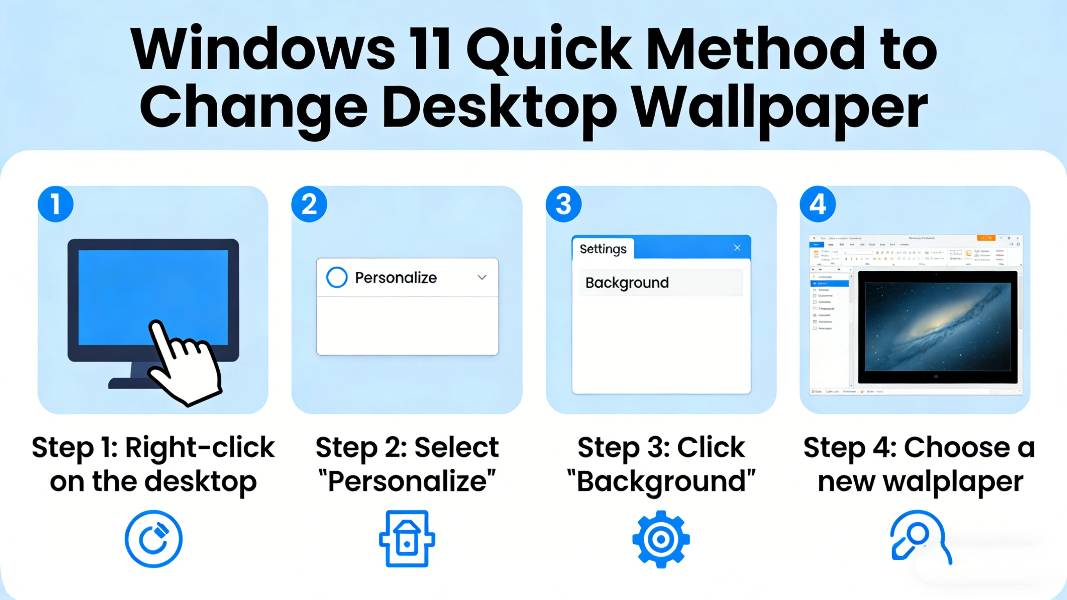
The fastest way to change your desktop wallpaper only takes a few clicks, perfect for quick customization:
1. Right-click on any empty space on your Windows 11 desktop.
2. Select the Personalize option from the pop-up right-click menu.
3. In the Personalize window, click Background in the left sidebar (it’s the first option).
4. Under the Personalize your background dropdown menu, select Picture (the default option).
5. Click Browse photos to select an image from your computer (Pictures, Downloads, etc.).
6. Once you select the image, Windows 11 will set it as your desktop wallpaper immediately.
You can also choose from Windows 11’s built-in wallpapers by clicking the thumbnails under the Browse photos button.
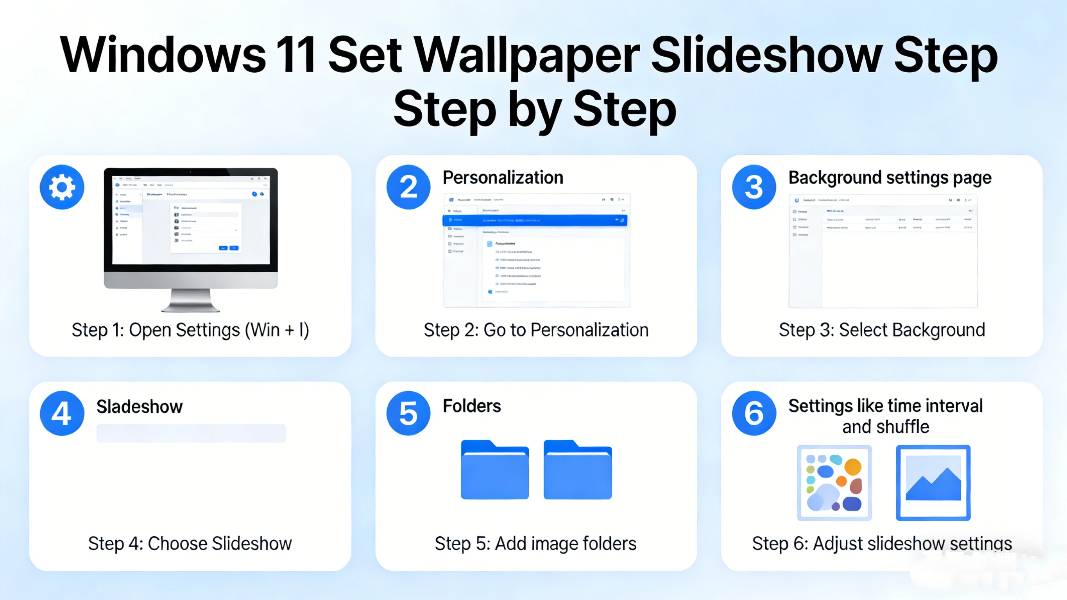
If you want your desktop wallpaper to change automatically, set up a slideshow with your favorite photos:
1. Open the Personalize window via right-click > Personalize, then go to Background.
2. Under Personalize your background, select Slideshow from the dropdown.
3. Click Browse to choose a folder on your computer that stores the photos for the slideshow.
4. Adjust the Change picture every setting (options: 1 minute, 5 minutes, 15 minutes, 30 minutes, 1 hour, 6 hours, 1 day).
5. Check the Shuffle the pictures box if you want the slideshow to play photos in a random order.
6. Leave the Choose a fit setting as Fill for the best screen display (other options: Fit, Stretch, Tile, Center, Span).
Your wallpaper slideshow will start right away and change photos according to the time you set.
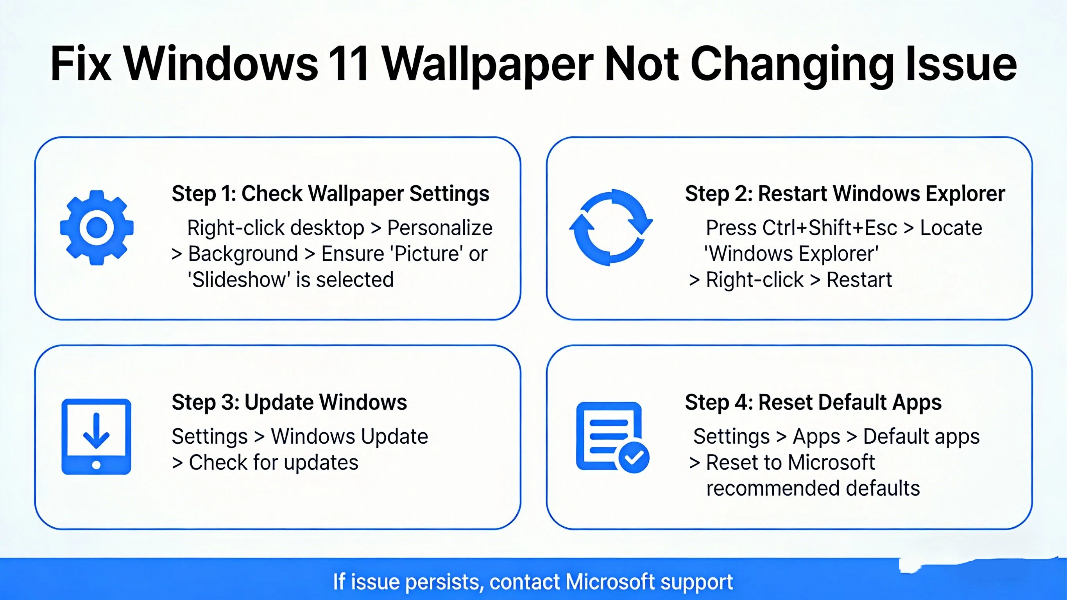
If you follow the steps above but your desktop wallpaper won’t change, try these simple fixes to resolve the issue:
Restart your Windows 11 computer to refresh the system settings.
Check if the image file is corrupted (try opening it with a photo viewer first).
Make sure the image format is supported by Windows 11 (convert to JPG/PNG if needed).
Update Windows 11 to the latest version to fix system bugs related to personalization.
Reset the Personalization settings by going to Settings > System > Recovery > Reset PC (keep your files if needed).
These solutions will fix most common wallpaper change issues in Windows 11.
Can I set a live wallpaper in Windows 11?
Windows 11 does not support live wallpapers natively, but you can use third-party software to add live wallpaper effects.
How to set a solid color as desktop wallpaper in Windows 11?
In the Background settings, select Solid color from the dropdown, then choose a color or customize your own.
Will changing the desktop wallpaper affect computer performance?
No, changing the wallpaper has no impact on Windows 11’s speed or performance, even for slideshows.
Learning how to change desktop wallpaper in Windows 11 is a simple way to customize your computer, and you have multiple options: use built-in pictures, your own photos, or set an automatic slideshow. The quick right-click method is perfect for one-time changes, while the slideshow setting lets you enjoy a rotating collection of your favorite images.
If you encounter any issues with your wallpaper not changing, the simple fixes in this guide will help you resolve the problem in minutes. With these steps, you can make your Windows 11 desktop look exactly how you want it.
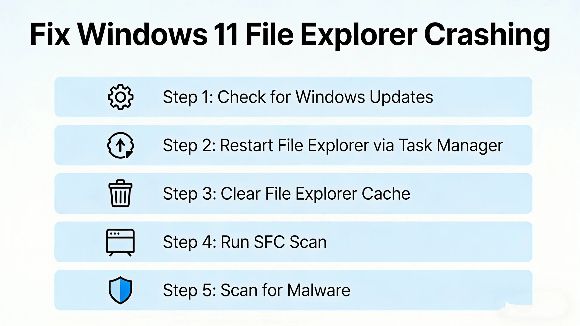
If your Windows 11 File Explorer keeps crashing or freezing every time you open it, learning how to fix Windows 11 File Explorer keeps crashing issues can restore your daily workf...
2026-03-29 | 36views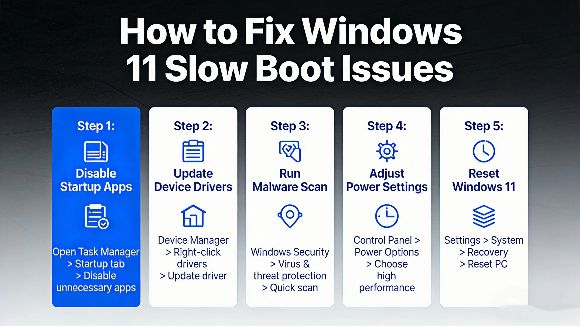
If your Windows 11 PC takes forever to start up, learning how to fix Windows 11 slow boot issues can make a huge difference in your daily experience. Many American users deal with...
2026-03-27 | 51views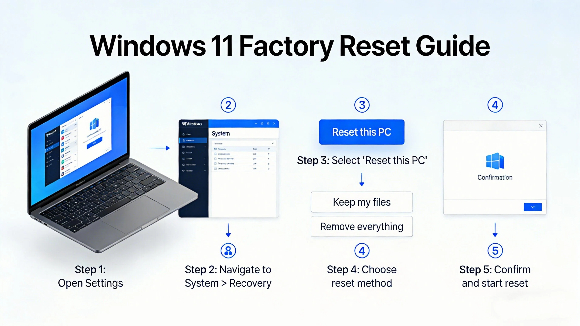
Many Windows 11 users often face system lag, glitches, and clutter, so learning how to reset Windows 11 to factory settings is the most effective way to restore your PC to full pe...
2026-03-26 | 39views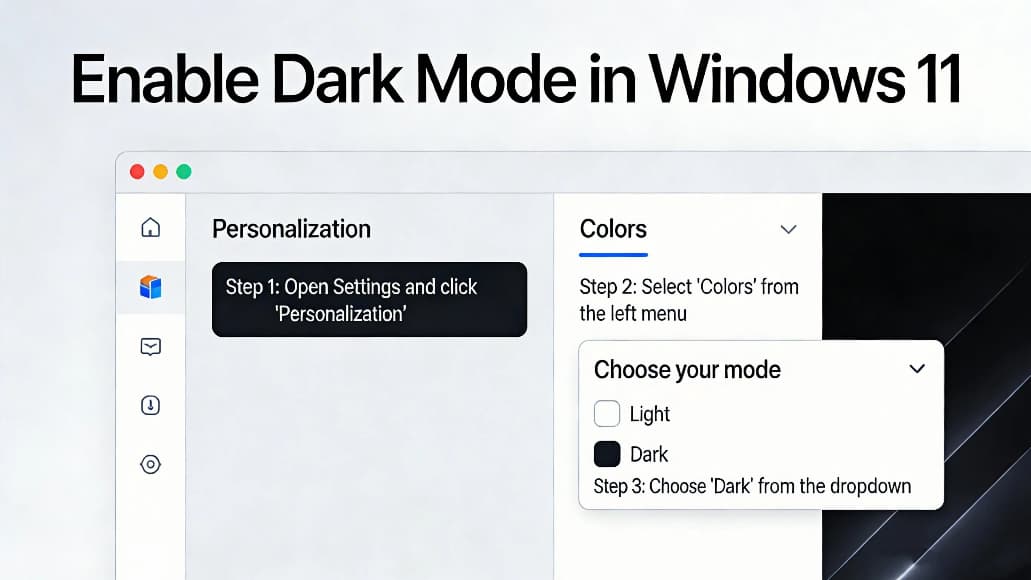
Many users want to know how to enable dark mode in windows 11 to reduce eye strain and save battery power on laptops. Dark mode changes the system interface settings apps and menu...
2026-03-25 | 48views
Many users want to know how to show desktop icons in Windows 11 after installing or updating the system. By default, Windows 11 may hide important desktop icons like This PC, Recy...
2026-03-23 | 85views
Many users want to know how to enable dark mode in Windows 11 to reduce eye strain, save laptop battery, and enjoy a cleaner interface. Dark mode changes the system appearance of ...
2026-03-22 | 69views