
Many users want to know how to enable dark mode in windows 11 to reduce eye strain and save battery power on laptops. Dark mode changes the system interface settings apps and menus to a dark color scheme which is more comfortable for long time use. This guide shows you all simple methods to use this helpful feature quickly.
Dark mode provides many useful advantages for daily computer use. It reduces eye fatigue especially when using the device at night. It helps save battery life on OLED and AMOLED laptop screens. It also makes the screen look more stylish and less bright in low light environments. Most users prefer dark mode for better visual comfort.
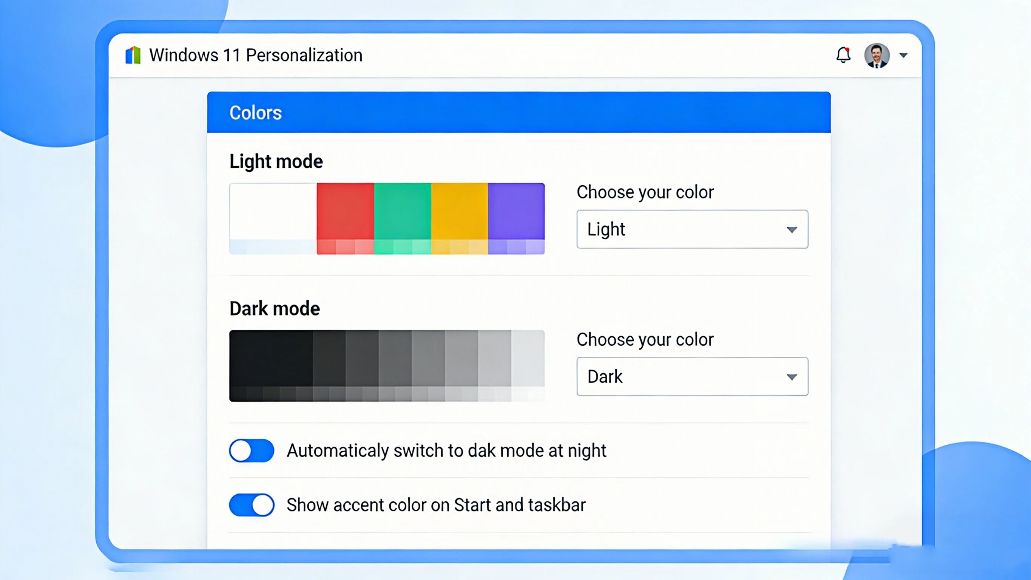
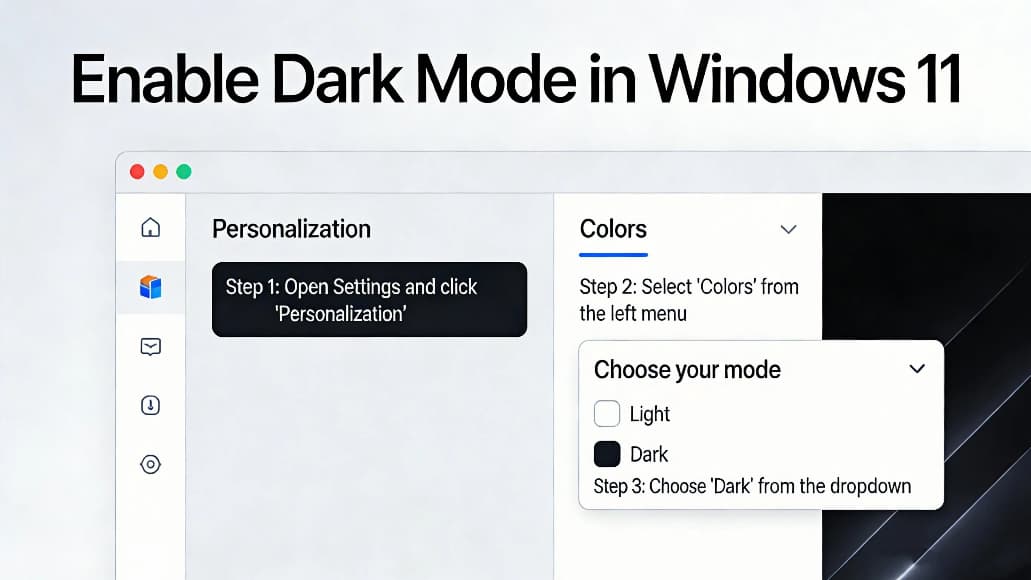
The fastest way to turn on dark mode only takes a few simple steps. Press the Windows key and I key at the same time to open Settings. Find and select the Personalization option from the left menu. Choose the Colors section on the right side. Look for the Choose your mode dropdown menu. Select the Dark option to apply system wide dark mode immediately.
The entire Windows 11 interface will switch to dark mode right away. This method works for all official versions of Windows 11, and it’s ideal for users who want a quick way to customize their device without extra steps.
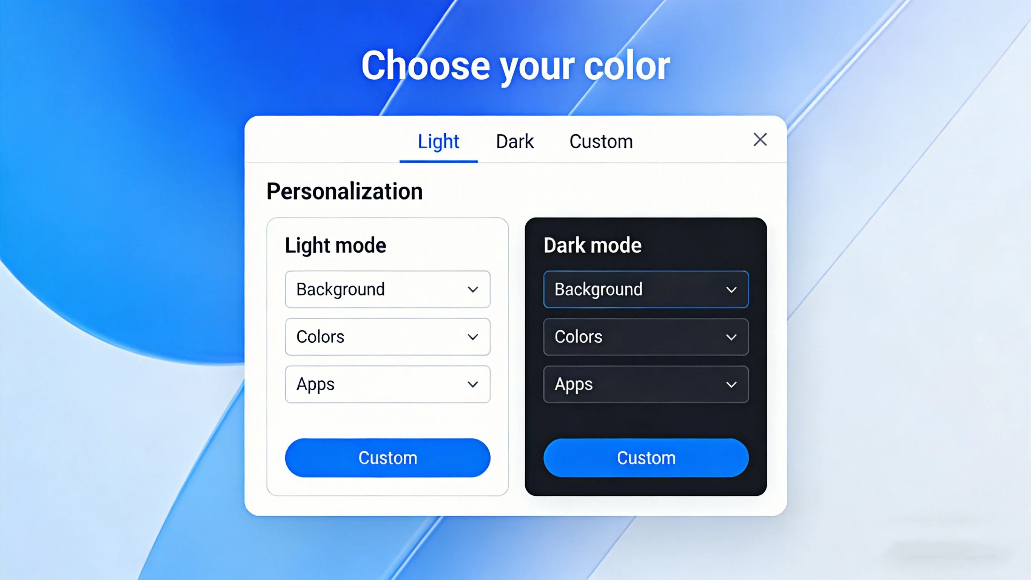
Windows 11 allows you to set different modes for the system and apps. Open Settings and go to Personalization then Colors. Find Choose your mode and select Custom option. You can then set Choose your default Windows mode to Dark. Set Choose your default app mode to Dark as well. This gives you full control over the color scheme of your device.
You can switch back to light mode anytime using the same settings path, making it easy to adapt to different lighting conditions or personal preferences throughout the day.
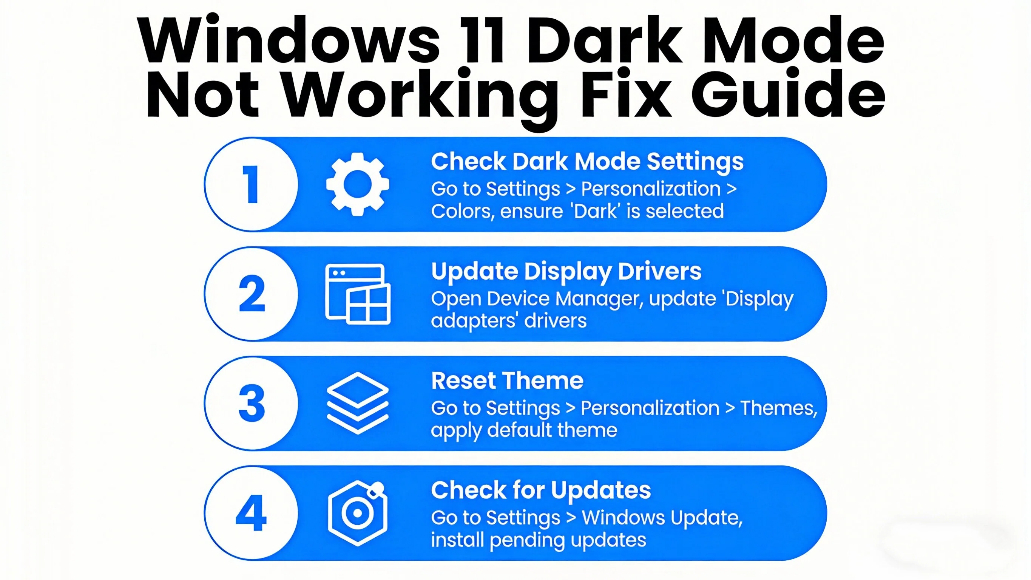
If dark mode does not apply correctly try these easy solutions. Restart your computer to refresh all system settings. Install the latest Windows 11 updates to fix potential bugs. Check if you selected the correct Dark option in color settings. Reset the personalization settings to default values. These steps will fix most dark mode related problems, ensuring you can enjoy the benefits of dark mode without interruptions.
Can I schedule dark mode to turn on automatically
Windows 11 does not have a native schedule feature but you can use third party tools to auto switch modes.
Does dark mode work for all desktop apps
Most built in apps support dark mode and some third party apps follow the system color scheme automatically.
Can I use dark mode only at night
Yes you can manually switch modes or use external programs to activate dark mode during night time.
Learning how to enable dark mode in windows 11 is very easy and takes less than one minute. You can use the quick settings method to activate dark mode for the entire system. You can also use custom mode to adjust system and app colors separately.
Dark mode improves visual comfort and enhances your overall Windows 11 experience. This guide helps you master the steps you need for daily use.
If you want a more comfortable screen experience, learning how to enable dark mode in windows 11 is a great choice. It works well for all kinds of users and fits every Windows 11 device perfectly. You can use this setting anytime to make your device easier on the eyes and more enjoyable to use. Whether you are working from home, studying online, or just browsing the web, this simple customization can make a big difference in how you interact with your computer every single day.
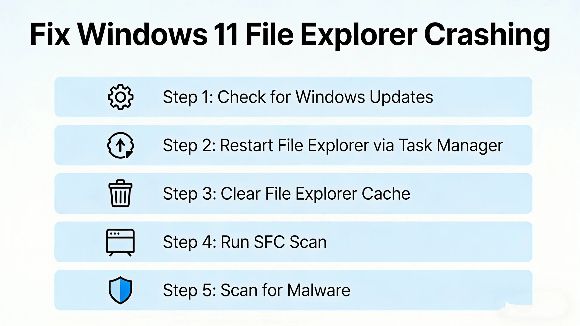
If your Windows 11 File Explorer keeps crashing or freezing every time you open it, learning how to fix Windows 11 File Explorer keeps crashing issues can restore your daily workf...
2026-03-29 | 36views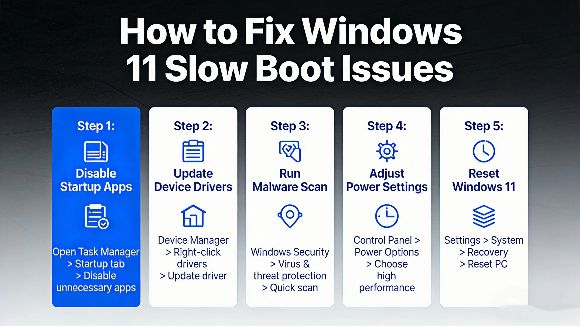
If your Windows 11 PC takes forever to start up, learning how to fix Windows 11 slow boot issues can make a huge difference in your daily experience. Many American users deal with...
2026-03-27 | 51views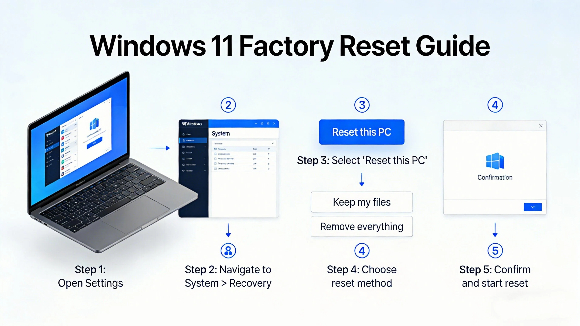
Many Windows 11 users often face system lag, glitches, and clutter, so learning how to reset Windows 11 to factory settings is the most effective way to restore your PC to full pe...
2026-03-26 | 39views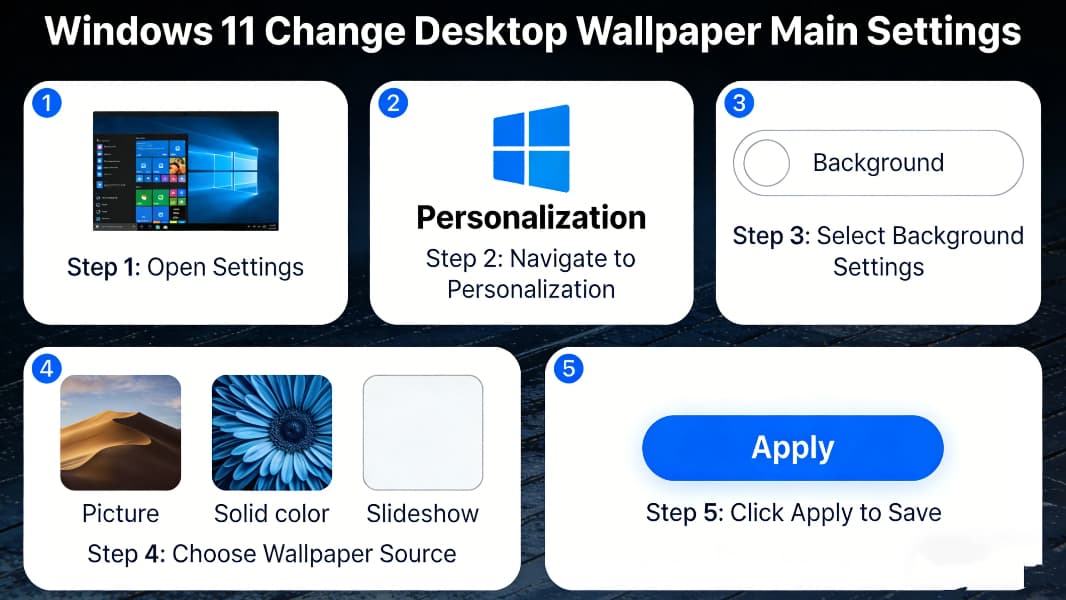
Many users want to know how to change desktop wallpaper in Windows 11 to customize their computer interface and make it more personalized. Whether you want to use Windows 11’s bui...
2026-03-24 | 51views
Many users want to know how to show desktop icons in Windows 11 after installing or updating the system. By default, Windows 11 may hide important desktop icons like This PC, Recy...
2026-03-23 | 85views
Many users want to know how to enable dark mode in Windows 11 to reduce eye strain, save laptop battery, and enjoy a cleaner interface. Dark mode changes the system appearance of ...
2026-03-22 | 69views