How to Use ChatGPT Audio Uploads
Click the + button next to the message box → upload your audio file (WAV, MP3, M4A, etc., up to 512 MB) → type your transcription prompt and press Enter — ChatGPT returns the transcript directly in the reply. Paid plans only (Plus, Pro, Team, Enterprise); the Free plan does not support audio uploads.
ChatGPT Audio Upload Steps
- Open chatgpt.com and sign in to a paid account (Plus, Pro, Team, or Enterprise).
- Click the + (plus) button next to the message box.
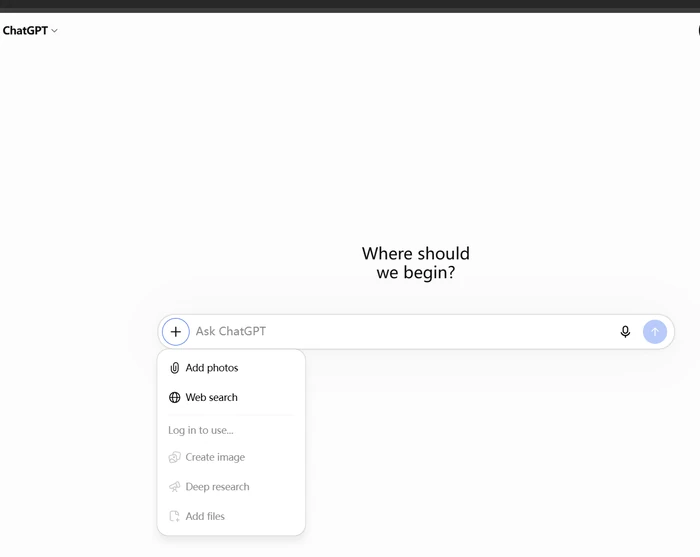
- Select Upload from computer and choose your audio file (MP3, WAV, M4A, etc.).
- Type what you want in the message box, for example: Transcribe this audio with timestamps.
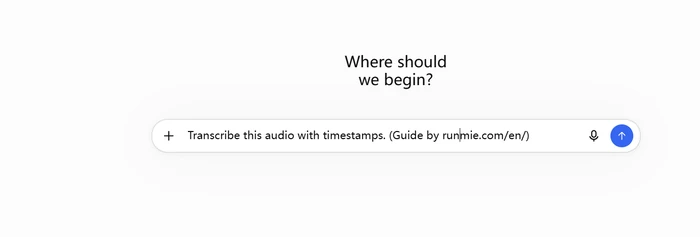
- Press Enter and wait. Long files take a few minutes.
- Read the transcript in the reply. Follow up if needed, for example: Summarize this in bullet points. or List the action items and who owns them.
- Save the transcript by clicking the copy icon on the reply.
Limits on Uploading Audio to ChatGPT
- Max file size: 512 MB
- Up to 80 audio files per 3 hours
- Supported formats: WAV, MP3, M4A, FLAC, OGG, AAC, WebM, PCM
- Transcripts can contain errors; speaker identification is unreliable
- The audio file is automatically deleted after transcription
Sources
