How to Use Gemini Omni 1.2 Flash
Want to know how to use Gemini Omni 1.2 Flash? Six steps to a finished clip: open the site, click Video to switch the prompt box to video mode, click Seedance 2.5 inside the prompt box, pick Gemini Omni 1.2 Flash from the panel, write the prompt, and click the up arrow to send.
Find Gemini Omni 1.2 Flash
- Click https://flowith.io/, open the link and sign in. The prompt box sits in the middle of the page, with a row of mode buttons underneath it.
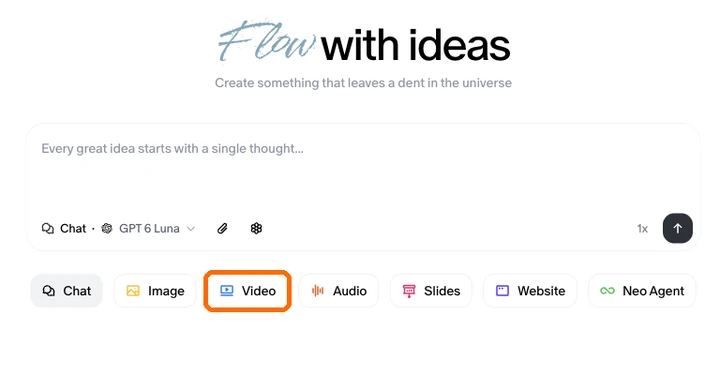
The orange box marks the Video button. Chat is selected by default. - Click Video in that row. The box rebuilds: Start frame, End frame and Loop appear above the text field, and the model name at the bottom left switches from a chat model to a video model.
Select Gemini Omni 1.2 Flash from the model panel
- Click the model name at the bottom left of the prompt box. It reads Seedance 2.5 by default.
- The panel opens above the button. Gemini Omni 1.2 Flash is the second card in the first row, tagged NEW.
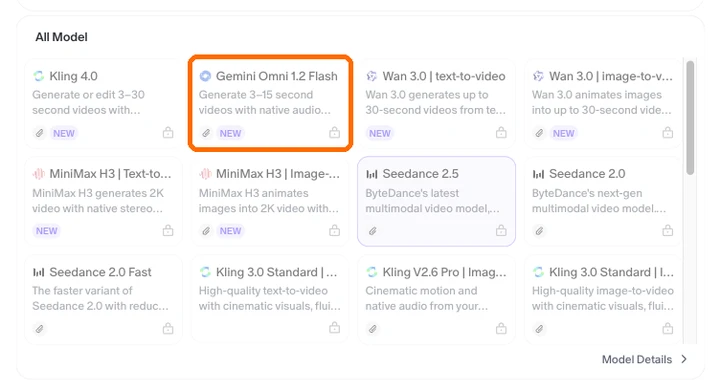
The orange box is the second card in the first row, marked NEW. - Click that card. The panel closes and the name in the box changes to Gemini Omni 1.2 Flash, which means it is selected.
Write a Gemini Omni 1.2 Flash prompt
- Write one sentence in the text field: subject, action, camera, light. “A paper plane leaves a hand on a rooftop, camera tracks left, late afternoon sun.”
- Put the sound in the same sentence. The model generates native audio, so “rain hitting metal” or “no dialogue” changes the result as much as the visual line does.
- Click Start frame to upload an image if the first frame has to be fixed. End frame works the same way, but first-to-last-frame caps at 10 seconds.
- Set the shape, resolution and length in the row under the text field. auto keeps the source ratio, 480p is the default, 4K is the most expensive, and length runs 3 to 15 seconds in one-second steps.
Run Gemini Omni 1.2 Flash
- Click the up arrow at the right edge of the prompt box, or press Enter.
- The run starts, progress shows on the current canvas, and the clip lands as a card you can open and download.
- Change the prompt and click the same arrow for a second take. Every earlier result stays in Media History on the left.
Greyed-out Gemini Omni 1.2 Flash card
On a free account the card sits at half opacity. Every step above still works; only the click on the card gets blocked.
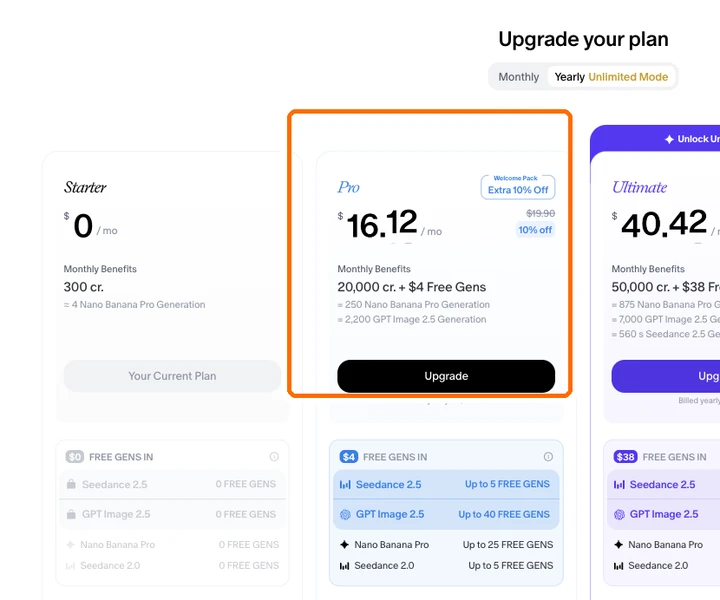
- The dialog is titled “Upgrade your plan”, not model settings.
- Starter is $0 a month with 0 free runs on the video models, which is why every video card stays grey.
- The cheapest plan that unlocks them is Pro at $16.12 a month on yearly billing, $193.43 a year, 20,000 credits.
- After upgrading, come back to the same prompt box and repeat the four sections above.